Week 4: Networking and communications
Use 'Print preview' to check the number of pages and printer settings.
Print functionality varies between browsers.
Printable page generated Friday, 16 October 2026, 5:58 PM
Week 4: Networking and communications
Introduction

Transcript
Cory introduces the networking and communications topic.
You’ll learn how data is transmitted across the networks, including wireless networks and understand the difference between the internet and the world wide web.
1 What is the internet?

The internet is not a single entity with a single owner; instead it comprises a hierarchy of individual networks that have been connected to one another. These networks range from local area networks (LANs) that can be found in many businesses and universities to the telephone and data networks that link cities and countries by fibre optic cables and satellite links.
A definition often used is that the internet is a network of networks. Before looking at the design of the internet in more detail, let’s hear from Vinton Cerf, one of the engineers who was involved in the creation of one of the earliest computer networks:
Transcript
Two key factors in the design of the internet were:
- The network would not have a central controlling computer. Each computer on the network would be assumed to have the same authority as every other computer.
- The network should be able to deliver information between any two computers on the network even if some of the machines in the network had failed (or given its Cold War origins, been blown to pieces). There would be a large number of alternative routes through the network, so it was not necessary for information to travel by the most direct route, instead it could travel in a roundabout route, avoiding the damaged parts of the network.
In the next section, you’ll see how this works.
1.1 How data moves around the internet

Transcript
The video explains how data is routed across a network of computers and how the internet is resilient to failures of individual computers, known as nodes of the network, or connections between computers, known as the links.
Instead of using a dedicated circuit for all of the information, internet traffic is split up and may take any number of routes through the network moving from its origin to the destination by a series of hops.
Note: Early in the above the video [2:05], an example packet is shown with destination address 6.7.8.104. However, there are subsequently two separate examples of different packets being routed. In the first example, the packet is being sent to a host on the local network, 1.2.3.104 and in the second example it is being sent to a remote host, 6.7.8.101.
1.2 Introducing the datagram

When data, such as a picture, movie or a document is sent over the internet, it is not sent as a single chunk. Instead it is split up into small, uniformly sized blocks called ‘datagrams’, also sometimes called ‘packets’.
Imagine that you have a large book that you want to post to a friend, but you only have small envelopes. One way to post the book is to tear it into a number of pieces, placing each piece in a different envelope. Each envelope is addressed to the recipient. It makes sense to label each envelope with a number to tell your friend where the pages belong in the whole book. When the envelopes are put in the postal system they may all travel through the same sorting offices and arrive on the same day, or they might take different routes and arrive on different days. However, your friend should be able to recreate the book when they receive all the envelopes.
A number of different datagrams are used by data travelling over the internet, but they all have a similar structure. One envelope and its contents correspond to a single datagram. The envelope (which is called the ‘header’) contains the sender and recipient’s addresses, a unique number, a date stamp and some error correction information, while the contents (called the ‘payload’) contains the actual information being delivered.
The address is an IP number that you will look at later in Week 4. You can look up the details of an address by using a ‘whois’ service. For example, you could use the site https://whois.domaintools.com/ and type open.ac.uk into the whois search box.
In the details returned you can see:
IP Address 137.108.200.90
Other details show that the domain belongs to The Open University. The IP location is in Milton Keynes, England, and is hosted on an Apache server.
1.3 Datagrams on the move
We have seen how, in theory, datagrams of information move around the internet. It’s actually possible to see this in action, often with surprising results.
Each datagram is sent through a series of computer nodes that form the backbone of the Internet. There are many thousands of these nodes and often many different routes between them. Each of these nodes has an IP address. If you look up the IP address of the node using ‘whois’, some will provide a geographical location for the node. Some will provide only the country of that node, and some provide no location information.
On most computer systems you can run software that will follow the route from your computer to a destination IP address, and it will return a list of the nodes that it passes through. These are usually known as ‘Traceroute’ apps. See the wikihow page for information on how to run this Traceroute tool on your computer: https://www.wikihow.com/ Traceroute.
Instead of looking up the ‘whois’ for each node to see where it is located, you can use an online utility that does this looking up for you and plots the results on a map. Open https://peter-thomson.com/ leaflet-map-tutorial/ traceroute-mapper.html in your browser and paste in the output from running ‘Traceroute’ on your computer.
Activity 1 Datagrams
Spend about 10 minutes exploring the routes to some of the following Australian organisations:
Be warned! You might be surprised at what you find – information is not necessarily coming from where you might expect it to. Also, bear in mind that things change frequently when it comes to the internet; not only might the route be different if you look at the same destination at different times, but even the location where the information comes from might be different.
Nodes increasingly don’t provide information – a security precaution. Nodes only identify a country – or the wrong country as they are using factory defaults. The destination might also not be the original server as sites may be cached or served from multiple locations.
Now use the site https://whois.domaintools.com/ to locate the Sydney Morning Herald.
Not where you expected?
The information for usyd.edu.au is less informative, but shows:
IP Location - New South Wales - Sydney - University Of Sydney
Discussion
You will have discovered that the route to the Sydney Morning Herald website did not terminate in Australia.
A URL ending in ‘.au’ is an Australian domain, but that doesn’t mean that the computer hosting the site has to be in Australia.
The Australian Domain Name Administrator (auDa) is responsible for licensing users of ‘.au’ names, and it has rules that require the licensees to have some connection with Australia (that is not the case with all countries; some authorities allow anyone to license their names). However, where the website is hosted – which computer the website is stored on – is a different question from who is using the URL. For example, Google (based in the USA) offers a service hosting websites (Google Sites). It’s possible to use a service with a ‘.eu’ (European) domain name, with the result that the ‘.eu’ site is in the USA.
You can look up the details of an address by using a ‘whois’ service. For example, you could use the site https://whois.domaintools.com/ and type innovations.ac.uk into the whois search box. Note that this domain is also associated with The Open University.
In addition, websites that receive heavy usage from a particular location might be cached locally – that is to say, copies of the website’s data might be temporarily stored on a computer closer to the location from which the information is being accessed. This saves making heavy use of long-distance connections.
How many stages did your information take? Did anything surprise you about the route your information took?
Use Trace Route and ‘whois’ to look up the location of other website domains that you use.
1.4 Wireless networks
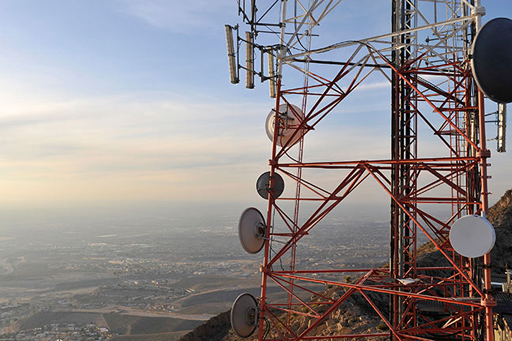
Early computer networks depended on wires to move their data around the world, but engineers quickly realised that it would be useful to be able to use wireless (radio) connections to create a local wireless network.
Nowadays, wireless local area networks are commonplace. These wireless local networks have become known as Wi-Fi after the trademark of the Wi-Fi Alliance that certifies compatible products. If you have a laptop, tablet or smartphone, it probably has wi-fi access. Wi-fi is also being incorporated into an ever wider range of consumer goods including eBook readers, smart televisions, burglar and smoke alarms.
Wi-fi enables devices such as computers and printers to be connected together wirelessly to form a local area network (LAN). Instead of the signals going through cables and wires, they are sent through the air instead as radio waves.
The name ‘wi-fi’ refers in particular to wireless local area networking technology that is compliant with a particular family of standards maintained by the Institute of Electrical and Electronics Engineers (IEEE) and called the 802.11 family. You will see different variants of this standard on wireless routers, for example 802.11b, 802.11g and 802.11n.
In wireless LANs, the individual laptops, mobile phones and other devices, or nodes, are usually referred to as stations, acknowledging the fact that each communicating device acts as a radio station with a transmitter and a receiver.
In order to connect to a wi-fi network, a station needs to know the name of the network. This is also known as the service set identifier (or SSID) of the wireless LAN. The ‘service set’ referred to here is the set of wireless devices to be served by a particular wireless LAN.
The SSID allows the nodes on a wireless LAN to distinguish themselves from nodes on other wireless LANs that may be operating in the same physical space. For example, in many airports mobile phone companies provide free wireless LAN services to their customers and use the SSID to ensure that customers connect to the appropriate wi-fi network.
When you are trying to connect to an available network, you will see a list of SSIDs that are reachable from your device, some of these will have padlocks against them – more about what that means later.
2 Is your private information really private?

Transcript
We all hope that the information we send wirelessly is private, but is that always the case?
Channel 4 News was able to learn personal information about unsuspecting people by intercepting their, supposedly private, but in reality completely public, wireless internet signals.
The attack shown in the video was possible because the hackers had set up their own wi-fi hotspot that either advertised the name of a common wireless hotspot provider, or the users chose to connect to a ‘free’ wi-fi network. The lesson here is to be careful about the public wi-fi networks you connect to, and the types of information you access using these networks.
2.1 Network security challenges
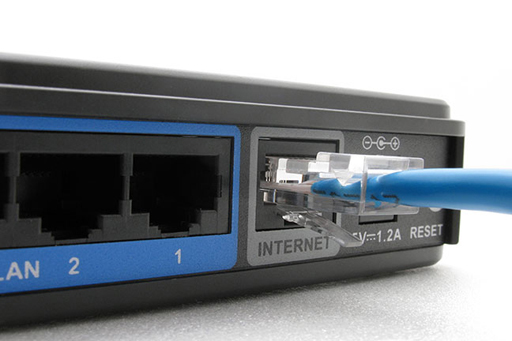
Internet routers are designed to move datagrams to their destination but how secure are they?
They have been programmed with strategies to overcome problems such as congestion or the failure of a part of the network. These strategies involve re-routing datagrams via any alternative path, as you saw from using Trace Route. Therefore, it is impossible to state with any assurance which route will be taken by a datagram travelling outside a local network.
The datagram may travel directly, or, more probably, travel through several routers located anywhere in the world. These routers will most probably not belong to either the sender or the recipient, but a third party. In most cases this will not matter, but datagrams can be copied, and their security compromised, as they pass through a router without alerting either the sender or receiver.
The process is known as packet sniffing and it has many legitimate purposes including analysing network performance and for law enforcement, but packet sniffing software is readily available to anyone who chooses to use it. In the past, packet sniffing required a computer that was wired to the network, but wireless networking means this is no longer the case.
2.2 Encryption in wireless networking
Since wireless networks transmit data over a medium that is shared by everyone, anyone with a compatible receiver or transceiver is able to eavesdrop on the radio signals being sent.
Ensuring that the eavesdropper is not able to convert these signals into the original message is a desirable security property of any wireless network, referred to as ensuring confidentiality. (This was one of the three security essentials we mentioned earlier, along with integrity and availability.)
Another security problem with using a shared medium for transmission is that malicious users could interpose themselves between a sender and a receiver and modify the messages being exchanged or even destroy them entirely. This is sometimes called a ‘man-in-the-middle attack’, and it compromises the integrity of the data being transmitted across the network.
Finally, an attacker could transmit lots of random data on the frequency being used by the wireless network, congesting the network and thus preventing other users from sending data. As we saw earlier in the course, this is called a ‘denial-of-service’ (DoS) attack and is an example of an attack on the availability of the network.
How encryption can help
So how do wireless networks address these potential security issues?
One commonly used security mechanism is encryption, which can help to ensure both the confidentiality and the integrity of data. The idea of encryption is to take the information you wish to protect and transform it into a different form, such that only the people who are supposed to receive the information are able to reverse the transformation and recover the original information. This is like having a key to unlock a door; only a person with the right key can open it.
Encryption can help ensure:
- Confidentiality – When a message is encrypted using a particular key, it can only be decrypted to recover the original information if the same key is used. This ensures that messages are confidential between the sender and the receiver.
- Integrity – Encryption can prevent messages from being modified without the receiver’s knowledge.
- Authentication – Encryption can contribute to the process of proving the identities of the sender and receiver.
You will look at encryption and decryption in more detail next week when we explain how cryptography works.
Encryption in wi-fi
Since wi-fi was first introduced, a number of security techniques have been used to protect wi-fi networks from unauthorised users and to ensure that the data transmitted across them is secure. The most common methods are based on encryption, using a key known only to the nodes in the wireless network.
The first of these mechanisms was called Wired Equivalent Privacy (WEP), which (as the name suggests) aimed to provide confidentiality comparable to that of a wired network. Since 2001, a number of serious problems have been identified in WEP that allow the encryption key to be computed within a few minutes, using readily available software. Many wireless devices still support WEP to ensure compatibility with older equipment such as old modems, but wherever possible users should switch to a more modern form of encryption.
In 2018, most equipment for Wi-Fi networks use Wi-Fi Protected Access 2 (WPA2), which uses a more secure key to encrypt the transmitted data. This security mechanism has become the default configuration for wi-fi networks, and must be supported by all wi-fi devices in order for them to be compliant with the 802.11 standard.
In 2019, new Wi-Fi devices should start to move to the WPA3 standard that will add higher levels of security. However, many public Wi-Fi networks will continue to run WPA2 and won’t provide the enhanced security.
The only way of enhancing security on public Wi-Fi networks is to use a Virtual Private Network (VPN) which we will discuss in Week 6.
In the next section you’ll consider how you might use wi-fi more securely.
2.3 Using wireless networking securely
Use the network connection tool on your computer to identify how many wireless networks are within range of your current location.
How many of them use secure connections? If your home wireless network is not configured to use WPA2 or WPA3, find out how to set this up and make sure to do this. The user manual for your wireless router or your internet service provider’s website should have information that will help.
Consider how you connect to the internet when you are on the move. Do you connect to your home wi-fi network, your mobile service provider, the free wi-fi in a coffee shop?
Go through the online services you identified in Week 1. Which ones would you choose not to access using public wireless networks?
3 Why we need standards on the internet
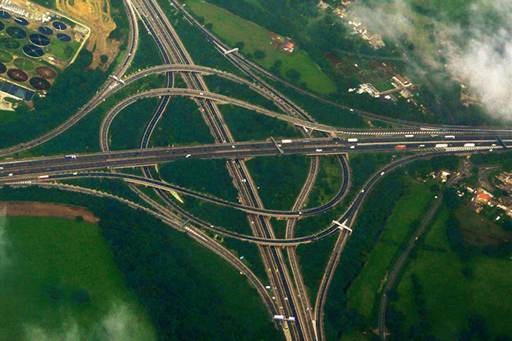
As you’ve learned, when you send data over the internet it is sent across several hierarchies of networks, using different technologies from many different providers and operated by different organisations.
These networks must use a standard form of communication so information from one network can be passed across to another network.
To some extent, the way any one of these separate networks works internally is nobody’s business but the owner and users of that network. However, where a network joins to other networks, where it becomes part of the internet, it has to conform to the standards of the internet.
The internet is not owned by a single organisation, so there is no one authority that dictates how it works. Yet all the different people and organisations with their own networks that together make up the internet have to work to common standards, or data would be unable to move between the different networks.
In the next section you’ll find out about the TCP/IP protocols.
3.1 Introducing the TCP/IP protocols
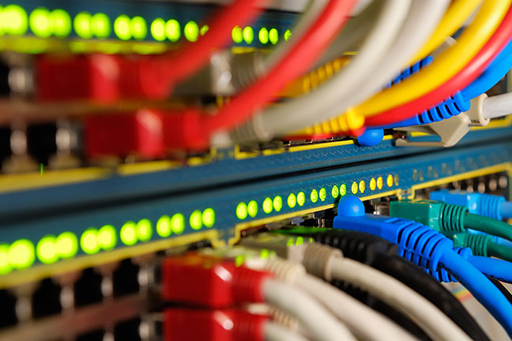
The standards that allow different networks and differing communications equipment to talk to one another are formalised in digital rules known as ‘communications protocols’.
For the internet the two most important are the Transmission Control Protocol (TCP), and the Internet Protocol (IP). They are so inextricably linked that they are often written together as TCP/IP.
TCP
The TCP protocol is responsible for ensuring data can be sent reliably over the internet. It works through a number of software ports that act to keep data separate on the same computer – so it is possible to browse a web page, collect email and listen to streaming music at the same time.
To understand how TCP works you need to know something about ports. A port can mean different things depending on the context. A port can be a physical connection on a device such as the USB port into which you plug your printer or flash drive. But for TCP, it means a number which indicates how data is handled when it reaches its destination. Many ports represent specific protocols such as port 80 representing the well-known port of HTTP.
Common TCP ports include the following:
- port 20 and 21 – File Transfer Protocol (FTP) for sending and receiving files (port 20) and control (port 21)
- port 22 – Secure Shell (SSH) for secure logins to computers
- port 25 – Simple Mail Transfer Protocol (SMTP) for sending email
- port 80 – HyperText Transfer Protocol (HTTP) for browsing web pages.
Data being sent from an application on your computer is divided into TCP datagrams each containing the TCP port number. The TCP application running on the recipient’s computer will then examine this port number to determine which application should receive the information in the datagram.
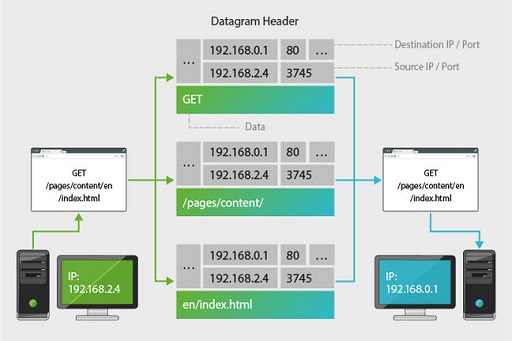
TCP’s second major task is ensuring that all data sent from a computer is received by its destination. It waits for acknowledgements from the remote computer, and in the event that a datagram gets lost or damaged in transit, it can resend the missing datagram. For this reason TCP is reliable – but relatively slow.
Applications where timeliness is more important than absolute accuracy – such as streaming media, video games and video conferencing – will use less reliable, but faster, protocols such as UDP (User Datagram Protocol) to send and receive their data.
If you are receiving an email, you want the whole message to arrive with no gaps, but if you are streaming a TV programme, it doesn’t greatly matter if a few datagrams get lost.
TCP is not responsible for sending and receiving information; that is performed by a second protocol – most commonly, IP, that we will look at next.
3.2 The internet protocol and IP addresses

The Internet Protocol (known as IP) does the hard work of actually moving data across the internet. IP is only concerned with moving data, it doesn’t actually check that data actually arrives (that’s handled by TCP).
When IP receives data from TCP to be sent on to the internet it wraps the TCP datagram in its own IP datagram containing a sender’s and a receiver’s address as well as some other information.
When IP receives data from the internet, it removes the IP datagram information and passes it to TCP which will perform the checking of the contents and reordering of information before it can be passed through the appropriate port to an application.
IP addresses
The internet addresses used by humans (such as www.open.edu) are purely for our convenience, as computers use numeric addresses known as ‘Internet Protocol’ addresses (or IP addresses, or sometimes IP numbers) for communication. Every computer directly connected to the internet has a unique Internet Protocol (IP) address.
There are two major forms of IP address: IPv4 and IPv6.
IPv4 (Internet Protocol version 4)
This is the most familiar form of IP address consisting of four numbers, each ranging from 0 to 255, separated by full stops (periods) in the form 192.168.0.1. IPv4 has long underpinned the internet although it is now in urgent need of replacement (see below) because the number of devices connected to the internet has nearly exhausted the total number of available IPv4 addresses.
IPv6 (Internet Protocol version 6)
IPv6 is a a replacement for IPv4, originally outlined in 1998, to accommodate the increasing demand for IP numbers as more people and devices were connected to the internet. It can support a theoretical 3.4×1038 devices meaning it is suitable for any conceivable demand.
IPv6 is intended to replace IPv4; however this is an extremely complex process and it has taken a long time with even the most developed countries still far from completing the transition. A measure of compatibility exists in the form of IPv4-mapped IPv6 addresses where IPv4 addresses are stored in the IPv6 format.
Reserved IP numbers
Not all of the numbers in the IPv4 address range are actually available for use. As well as large blocks reserved for specific users in the early days of the internet, some are specifically used for ‘private’ networks outside of the internet.
- 10.0.0.0 to 10.255.255.255
- 169.254.0.0 to 169.254.255.255
- 172.16.0.0 to 172.31.255.255
- 192.168.0.0 to 192.168.255.255
Your computer will allocate itself an IP address beginning 169.254… if it is unable to connect to a local network. If you have a connection to the internet from your home your computer will almost certainly have an address beginning 192.168… In this case your network hub has a genuine IP address, your computer and other devices attached to the modem have private addresses. Your modem alters IP addresses on packets as they are sent to and from your home network and the internet.
3.3 From numbers to names

When we type an address (such as www.open.edu) into a browser, the address is translated into a unique IP address by a name server, called a Domain Name Server (DNS), located somewhere on the internet. This IP address is attached to every IP datagram destined for the Open University server.
As an example we will use an IP datagram belonging to an email being sent to Bob who works in the coffee bar at Big University in America (Bob’s address is bob@coffee.big.edu). The address is sorted from the most general part of the address to the most specific. First of all, the name server on the sender’s machine makes a request across the internet to a computer which holds the addresses of all American universities (most of which use .edu at the end of their address) asking for the IP number of big.edu. Assuming that big.edu exists, the .edu name server then responds with the IP number for the name server at Big University.
The sender’s machine then uses that IP number to make a link to the name server at Big University and requests the IP number of the coffee shop computer used by Bob. The big.edu name server will then respond with the address of the coffee shop. The IP datagrams can then all be addressed correctly and sent into the network.
Up until 2019, the DNS information requested was sent as plain text and could be intercepted even when the data being sent or requested was encrypted. From 2019, it has become possible for DNS requests to be encrypted. In Firefox browser go to Settings, then Network settings and select the enable DNS over HTTPS checkbox.
Chrome 78 is also experimenting with this feature, which can be enabled by browsing to ‘chrome://flags/’ in your Chrome browser, searching for ‘dns-over-https’ and enabling. You will have to restart the browser for this change to take effect.
3.4 The internet is not the world wide web

We’ve all done it. We’ve all been browsing a website and said ‘I’m on the internet!’.
This is true, but misleading, if for no other reason than the internet dates from 1982 (with its roots as far back as 1969) but the world wide web only came into being in 1990 thanks to Sir Tim Berners-Lee.
Before the advent of the world wide web, not only did fewer people use the internet (it took until 1998 for 100 million people to log on for the first time), but it wasn’t anything like the world wide web we know today – almost all commands had to be typed in – often using cryptic instructions, and what you got back – if you got anything at all – was plaintext. The world wide web not only meant that it was possible to use the internet’s resources without learning a whole new language, but it allowed for rich text, graphics, animation and sound to be delivered quite literally at the click of a button.
Part of the internet
At its simplest, the world wide web is nothing more than the part of the internet that can be accessed through the HyperText Transfer Protocol (HTTP) – another one of those standards that helps glue the internet together. HTTP allows two computers to exchange information as a series of requests (e.g. a request from your computer for a copy of the To do list page for this course) and responses (e.g. an Open University server delivers the contents of that page).
HTTP relies on TCP to set up the connection between the two machines, and it in turn uses IP to send and receive data. The most common applications that understand HTTP messages are web browsers such as the one you are using right now.
The world wide web is an example of hypertext – documents joined together using links. Every time you click on a link, HTTP is used to request a new page from a web server using TCP port 80. The content for the page is delivered to your computer, again through port 80 and interpreted by a web browser which formats the data in a human readable manner.
Designed to be open
The world wide web was designed from the very start to be an open environment which encouraged people to set up their own web servers and to write web pages. To encourage its uptake, all of the documentation that explains HTTP, and other standards that have grown up around the web, are publicly available to anyone wishing to develop software for the web. Likewise, the computer language used to format web documents, the HyperText Mark-up Language (HTML) is not only fully documented online, but is extremely easy to use.
Apart from the world wide web, the internet itself is used for a much wider range of services including email, instant messaging and file transfers. The internet’s flexibility comes down to the flexibility of the underlying protocols – so long as information can be stored in IP datagrams – and just about anything can – it can be moved around the internet.
Interview with Tim Berners-Lee
Transcript
Listen to this interview. Towards the end, Tim Berners-Lee mentions a number of things that will be needed to make the world wide web achieve its full potential. One of these is digital signatures, which can be achieved using cryptography – our topic for next week.
Next, you have an opportunity to review your learning of the course so far in the Week 4 compulsory badge quiz.
4 Week 4 quiz
This quiz allows you to test and apply your knowledge of the material in Week 4.
Complete the Week 4 compulsory badge quiz now.
Open the quiz in a new window or tab then come back here when you’re done.
5 Summary of Week 4

This week you have learned the basics of computer networking and communications, gaining an understanding of how data is transmitted across the networks, including wireless networks.
You are now aware of some of the networking standards that allow different devices to connect to the network and exchange information.
Additionally, you have learned about the difference between the internet and the world wide web, and can describe some security problems that affect networks.
You are now half way through the course. The Open University would really appreciate your feedback and suggestions for future improvement in our optional end-of-course survey, which you will also have an opportunity to complete at the end of Week 8. Participation will be completely confidential and we will not pass on your details to others.
You can now go to Week 5: Cryptography.
Acknowledgements
This course was written by Arosha K. Bandara.
Except for third party materials and otherwise stated in the acknowledgements section, this content is made available under a Creative Commons Attribution-NonCommercial-ShareAlike 4.0 Licence.
The material acknowledged below is Proprietary and used under licence (not subject to Creative Commons Licence). Grateful acknowledgement is made to the following sources for permission to reproduce material in this course:
Images
Figure 1 © Michael Smith (via Getty images)
Figure 2 © bioraven (via Shutterstock)
Figure 3 © Mark Horn (via Getty Images)
Figure 4 © bluebird13 (via iStock Photo)
Figure 5 © olhainsight (via iStock Photo)
Figure 6 © powerofforever (via iStock Photo)
Figure 7 © Bet_Noire (via iStock Photo)
Figure 8 © Scorpions and Centaurs (via Flickr.com)
Figure 9 © no_limit_pictures (via iStock Photo)
Figure 11 © chrisroll (via iStock Photo)
Figure 12 © Pashalgnatov (via iStock Photo)
Figure 13 © Catrina Genovese (via Getty Images)
Figure 14 © John Lund (via Getty Images)
Audio visual
2 extract (including transcript) from Datababy: How easy is it to become a phone hacker? © Channel4/ITN
Every effort has been made to contact copyright owners. If any have been inadvertently overlooked, the publishers will be pleased to make the necessary arrangements at the first opportunity.
Don't miss out:
1. Join over 200,000 students, currently studying with The Open University – http://www.open.ac.uk/ choose/ ou/ open-content
2. Enjoyed this? Find out more about this topic or browse all our free course materials on OpenLearn – http://www.open.edu/ openlearn/
3. Outside the UK? We have students in over a hundred countries studying online qualifications – http://www.openuniversity.edu/ – including an MBA at our triple accredited Business School.