Week 8: Managing security risks
Use 'Print preview' to check the number of pages and printer settings.
Print functionality varies between browsers.
Printable page generated Thursday, 25 June 2026, 12:36 AM
Week 8: Managing security risks
Introduction
Introduction

Transcript
Cory introduces the final week of the course.
Over the past seven weeks, we have explored different cyber security threats together with actions we can take to prevent these threats from causing harm to our digital lives.
This final week of the course focuses on how to assess the security risks associated with your digital life so that you can effectively plan to protect yourself from attacks.
1 Information as an asset

You’ll remember from Week 1 that, when thinking about computer security, it helps to think of information as an asset. Just like money in the bank, it is valuable, possibly irreplaceable, and crucially it can be lost or stolen.
When we think about our assets, traditionally we consider tangible things such as money, property, machinery and so on. Increasingly, it is recognised that information itself is an asset, crucial to adding value. In today’s digital world, it is increasingly apparent that information is the most important asset, for both businesses or individuals – just think of the value of music to a media company or a games program to a video game company.
Considering information as an asset allows us to create strategies for protecting information and minimising the consequences of any disaster.
As you have seen earlier in this course, digital information and data assets covers everything that can be stored, processed or transmitted through digital systems. It covers all such personal, business or other digital data anywhere in the world. Since 1990, the world has moved from one where most information existed in paper formats, to one now where the world predominately transacts it business digitally.
Risk management
Information security risk management assesses the value of information assets belonging to an individual or an organisation and, if appropriate, protects them on an ongoing basis.
Information is stored, used and transmitted using various media; some information is tangible, paper for example, and it is relatively straightforward to put in place strategies to protect this information – such as locking filing cabinets, or restricting access to archives.
On the other hand, some information is intangible, such as the ideas in employees’ minds, and is much harder to protect. Companies might try to secure information by making sure their employees are happy, or by legal means such as having contracts that prevent people leaving and going to work for a rival. However, note that some industries have blossomed simply because people could easily move and spread new ideas rapidly through many start-up businesses.
Imperatives and incentives
Information security risk management considers the process in terms of two factors: imperatives or incentives. Imperatives are pressures that force you to act. Incentives are the rewards and opportunities that arise from acting.
The imperatives for information security arise from legislation and regulation. The Computer Misuse Act and the Data Protection Act 2018, which is the UK’s implementation of the General Data Protection Regulation (GDPR), which we discussed last week, are examples of legislative imperatives. Regulatory imperatives include standards such as the Payment Card Industry Data Security Standard (PCI-DSS), which specifies how merchants should secure all card transactions.
The most important incentive is trust. People and organisations are more likely to work with other people and organisations who have secured their information. Establishing this trust requires that the parties involved examine each others’ information security practices to ensure that there are adequate safeguards to protect the information. One way of doing this is to show that the organisation has satisfied the requirements of standards such as PCI-DSS or the ISO27000 family of standards for designing and implementing information security management systems.
In the last few weeks, you have covered all of these aspects – you have learned about a range of threats that confront internet users, you have explored laws that have been drawn up to regulate information and you have seen how the internet is fundamentally underpinned by trust and how technologies such as encryption and signatures can help us feel secure. In the next section, you are invited to apply this to your own information assets.
1.1 Your own information assets

In Week 1, you created a list of information assets that you possess. This was any sort of information that you store on a computer system that you use and which would be expensive, inconvenient, or impossible to replace if it was lost, damaged or stolen.
Spend a few minutes reviewing your list and thinking about whether you need to add anything based on what you have learned over the past eight weeks.
Lewis, a student of The Open University, did the same exercise on his own computers:
- study materials – documents and data relating to his postgraduate studies
- digital photographs – about 20,000 images taken over the last ten years
- music – about 10,000 tracks ripped from CD or bought online
- movies – about 200 films and TV programs
- email – about ten years worth of correspondence
- banking and other financial records
- passwords and account details.
Duplicates of some of these assets could be obtained if he lost the originals, for instance iTunes will allow him to download new copies of any lost music, but it would take a very long time to rebuild the entire library. Some others, such as emails and financial records could be recreated, but only by spending a lot of time asking for information from other people.
Passwords could be changed and other authentication information could be recovered, but again it would take a great deal of time and inconvenience to get back to normal. If these items had been stolen, an attacker might have been able to misuse those assets. The photos would, almost certainly, be lost forever.
Now look back at your own list of information assets. Does Lewis’s list prompt you to add any items to yours?
Next, you will learn about risk analysis.
1.2 Risk analysis

We use the term ‘risk’ in everyday speech, but a whole science has grown up around the identification, analysis and management of risks. You will now look briefly at how to apply some of these ideas to identifying, assessing and reducing risks that affect the security of your information.
Risk can be thought of as the chance of adverse consequences or loss occurring. Generally, risks can be identified and the likelihood of them occurring assessed.
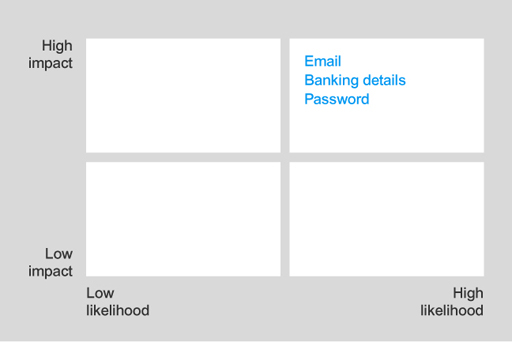
The main technique for a qualitative analysis of risk is to construct a likelihood–impact matrix in which the likelihood and impact of each risk event are assessed against a defined scale and then plotted on a two-dimensional grid. The position on the grid represents the relative significance of each risk. The simplest matrix is formed by classifying both likelihood and impact as either high or low, which leads to a 2 by 2 grid. This basic classification of a high or low value leads to the following rank order for tackling risks:
- high-impact, high-likelihood risks
- high-impact, low-likelihood risks
- low-impact, high-likelihood risks
- low impact, low-likelihood risks.

Low-impact, low-likelihood risks are probably not worth expending much effort on (but see the discussion of risk acceptance later this week). You can then look at these high-impact or high-likelihood risks one by one to determine whether there are ways either to reduce the impact if the risk occurs or to reduce the likelihood of the risk occurring, or both.
The next stage is to apply quantitative techniques, based on a financial assessment of the impact of each of the risks, to put the risks into order, with the greatest risks at the top of the list.
It is beyond the scope of this course to discuss these techniques. Sometimes it is hard to reach a decision about the importance of some risks until a corresponding response has been identified as well as any possible interactions between risk events and responses, so risk management is usually iterative in practice.
Next, you’ll do some risk analysis on your information.
1.3 Risk analysis in practice
Let’s think about a practical example of how qualitative risk analysis could be done for Lewis’s information assets.
Any successful attack on email, banking details and password information will have high impact and there is a high likelihood that these attacks will be targeted due to their high value. So they should go in the high-high box.
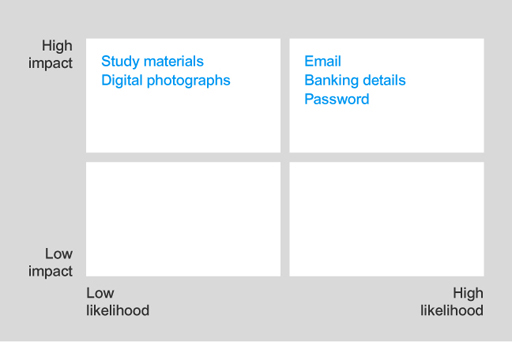
An attack that affects the study materials or digital photographs will have high impact, but there is a low likelihood given that these assets have minimal financial value to an attacker. These should be placed in the high-low box.
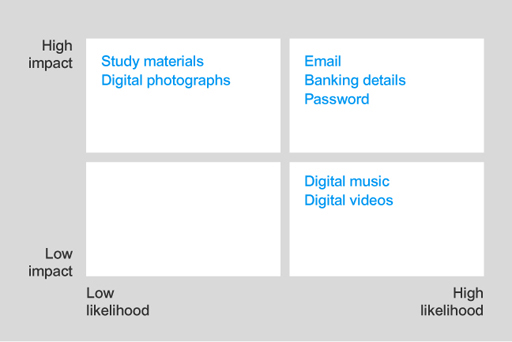
An attack on the digital music or videos will have low impact, since these can be downloaded again easily. However, this will have high likelihood because these assets can be easily copied and sold, this making these attractive to an attacker. Therefore, they go in the low-high box.
Conducting a risk analysis is an important part of protecting your information assets. Following Lewis’s example consider your own list of information assets and carry out a similar risk analysis to determine the impact and likelihood of attack for each type of information.
2 Staying safe online

There are a number of things you can do to stay safe on the internet. Like almost all parts of life, although you hear terrible stories, most people never have serious problems online. By taking a few simple steps, you can make yourself and your computer much more secure.
Stay up to date
Out of date software is one of the biggest problems for computer users. Bugs that have been fixed in newer operating systems or applications may remain unresolved in previous versions, leaving you vulnerable. This is especially important in the case of operating systems, which are responsible for managing files and connecting to the internet.
Check to see if your operating system is being supported by regular updates. For example, for Microsoft software you can search for your operating system at: https://support.microsoft.com/ en-us/ hub/ 4095338/ microsoft-lifecycle-policy.
Many other applications, such as Microsoft Office, the Java programming language (used by a lot of websites), web browsers and so on, also require regular updating to fix security problems.
If you are using an old operating system that is not supported by its manufacturer, or if you need an application, but your current edition is out of date, it is well worth investing in updated software. First, though, check that your computer can run the updated software, if not, it might be time for a new computer. Or consider installing a new operating system such as a free Linux OS on older equipment. Remember to backup all your data and passwords first.
Do the basics
The basic check list:
- set up a personal firewall
- install an antivirus program (remember, Macs do need antivirus protection)
- get used to making backups
- set up your computer to require passwords to log in and when unlocking the screen
- set up two-factor authentication for all important financial and social media sites
- use a unique strong password for each website
- use a password manager or encrypt your password folder
- use hard disk encryption if you have it – especially on laptops.
It will take a couple of hours to perform these steps, but your computer will be significantly more secure.
Fix your email
Most email applications now come with junk mail screening. If it’s not already enabled – turn it on! Your mail program will scan incoming email looking for suspicious messages that might be trying to scam you – or are just annoying spam. It puts any suspect messages into a junk mail folder where you can examine them later, just in case any genuine messages were misfiled.
Most email programs will also let you train the screening process so that any messages that were missed can be treated as junk in the future.
In the next section, you’ll learn some tips to improve your web browser’s security.
2.1 Fix your browser

Web browsers are steadily developing enhanced security and it is a good idea to use the latest version.
There are several simple things you can do to improve your web browser’s security.
- Use a browser such as Brave (https://brave.com/) that is designed to put your security first.
- Use a search engine such as duckduckgo (https://duckduckgo.com) that doesn’t track you.
- Use a secure VPN or the TOR browser when using public wi-fi.
Cookies are small pieces of data that can be used to track your use of the web and some websites host cookies belonging to organisations you know nothing about – these are called ‘third party cookies’ and they’re no use to you whatsoever. Use the tools/preferences menu in your browser to prevent the use of third party cookies.
Once you have checked your settings you can test whether you can be identified by your web browser by visiting the site https://panopticlick.eff.org. Read the information about this site and then hit the ‘Test Me’ button.
The table shows the test results for a secure browser.
| Test | Result |
|---|---|
| Is your browser blocking tracking ads? | Yes |
| Is your browser blocking invisible trackers? | Yes |
| Dows your blocker stop trackers that are included in the so-called ‘acceptable ad’ whitelist? | Yes |
| Does your browser unblock 3rd parties that promise to honour Do not track? | No |
| Does your browser protect from fingerprinting? | Your browser has a unique fingerprint |
Note the result ‘your browser has a unique fingerprint’. Here are my results for this test: ‘Your browser fingerprint appears to be unique among the 224,169 tested in the past 45 days. Currently, we estimate that your browser has a fingerprint that conveys at least 17.77 bits of identifying information.’
The table below shows the different attributes of the user’s browser and computer that can be detected by a web server.
| Browser characteristic | Bits of identifying information | One in x browsers have this value | Value |
|---|---|---|---|
| User agent | 7.89 | 237.97 | |Mozilla/5.0 (X11; Linux x86_64) AppleWebKit/537.36 (KHTML, like Gecko) Chrome/77.0.3865.90 Safari/537.36| |
| HTTP_ACCEPT headers | 5.77 | 54.74 | |text/html, */*; q=0.01 gzip, deflate, br en-GB,en-US;q=0.9,en;q=0.8| |
| Browser plugin details | 5.25 | 38.01 | Plugin 0: Chrome PDF Plugin; Portable Document Format; internal-pdf-viewer; (Portable Document Format; application/x-google-chrome-pdf; pdf). Plugin 1: Chrome PDF Viewer; ; mhjfbmdgcfjbbpaeojofohoefgiehjai; (; application/pdf; pdf). |
| Time zone | 2.57 | 5.95 | 0 |
| Screen size and colour depth | 5.77 | 54.44 | 1920x1200x24 |
| System fonts | 10.32 | 1280.97 | Andale Mono, Arial, Arial Black, Comic Sans MS, Courier, Courier New, Georgia, Helvetica, Impact, MS Gothic, MS PGothic, Times, Times New Roman, Trebuchet MS, Verdana, Wingdings 2, Wingdings 3 (via javascript) |
| Are cookies enabled? | 0.24 | 1.18 | Yes |
| Limited supercookie test | 0.36 | 1.28 | DOM localStorage: Yes, DOM sessionStorage: Yes, IE userData: No |
| Hash of canvas fingerprint | 17.77 | 224169.0 | c317936a22901617dd08dc99390e0fe1 |
| Hash of WebGL fingerprint | 13.45 | 11208.45 | dd255d5c1bddffd68d8e0921e64760b1 |
| DNT header enabled? | 1.05 | 2.07 | False |
| Language | 3.94 | 15.39 | en-GB |
| Platform | 3.06 | 8.35 | Linux x86_64 |
| Touch support | 0.69 | 1.61 | Max touchpoints: 0; TouchEvent supported: false; onTouchStart supported: false |
Each result by itself doesn’t give much information away. The screen size and colour depth suggests a desktop computer and the platform is identified as Linux. However, in combination all this information creates a digital fingerprint that might identify you wherever you browsed, even if you were pretending to be someone else and had blocked cookies. For most, that probably doesn’t matter, but, for example, a whistleblower or journalist reporting news should be aware of how hard it is to keep yourself hidden and safe.
Activity 1 Improving your browser security
Note down in the box below how you can further improve your browser security.
Next, you will decide what to do about the risks to your digital information and share your resolutions with your fellow learners.
2.2 Risk management in practice

Having analysed the situation, the next stage is to decide what to do about the risks.
For each risk to be managed, we need to identify what cost-effective countermeasures can be applied. Possible countermeasures are:
- Avoiding the risk – avoidance would mean stopping the activity that is causing the risk. For example, deleting all banking information and unsubscribing from internet banking would avoid the risks associated with the information assets related to banking.
- Modifying the risk (likelihood and/or impact) – this involves choosing and implementing a security mechanism that reduces the likelihood of a successful attack, or the impact that would result from such an attack. For example, installing an up to date antivirus application can prevent the attacker from using malware to gain access to the computer holding the internet banking information.
- Transferring the risk to others – typically involves taking out insurance to cover any losses in the event the threat materialises.
- Accepting the risk – would mean choosing not to implement any of these countermeasures, choosing instead to monitor the information asset for any attacks.
Consider risks identified in the qualitative risk analysis. Choose one of your information assets and decide on which countermeasures you would apply in this case.
2.3 Protecting your information assets

Now you’ve done a risk analysis, it’s time to look at how we can better protect our information assets.
You’ve already thought about backing up data and using encryption to protect information – but have you put any of these measures into practice?
Go back to the list of information assets you used in your risk analysis. What steps have you taken to protect them? Think in terms of what you have studied on this course. For example:
- Have you set up firewalls to protect your networked computers from external attack?
- Are you protected by up to date antivirus software?
- Are your operating system and key applications up to date?
- Is important information protected by encryption?
Note, next to each item on your list, the measure you have taken to protect it. If you have not yet implemented that measure, identify it in some way that will remind you to action it.
In the next section, you are invited to create a plan for implementing and maintaining your information security.
2.4 What should I do next?

You have now taken several simple but very important steps to protect your information. Review your list of information assets and work through what else you need to do to improve your own security.
Based on the risk analysis you have done for your information assets, create an information security action plan detailing the countermeasures you could implement to protect each asset.
Before proceeding, you should implement at least one set of countermeasures. In time, you should implement all the countermeasures and also periodically review your risk analysis and action plan to make sure that you are maintaining your countermeasures.
Some of your actions are likely to involve secure encryption and secret passwords. This can result in some significant problems for your business or family should you become incapable of handling these procedures or should you die.
Business users need to analyse how the business would continue to have access to any business documents and systems while ensuring full security at all times. Other users need to evaluate what assets should remain inaccessible on their death, and which assets should be available to family or friends. For the latter, the process by which secure passwords can be passed on to others needs to be planned.
Next you’ll learn about some of the recent developments in cyber security.
2.5 Tracking a moving target

Security is an ever-changing topic. New technologies are always being introduced and they bring new risks, or allow old threats to resurface in a new form.
Old technologies are retired by manufacturers, potentially leaving their users exposed to danger as bugs and security weaknesses remain unaddressed. And there are new threats being discovered every day, such as the WannaCry ransomware attack of 2017 or the more recent SamSam ransomware attack that shut down services across the city of Atlanta.
On 22nd March 2018, Atlanta, Georgia was hit by a cyber attack which rendered parts of the city’s government inoperable. The attack was in the form of a piece of malicious software (malware) called SamSam. This is a piece of ransomware – a program that stops users accessing their data until they pay a ransom, usually in a cryptocurrency such as Bitcoin, to receive the keys needed to unlock their data. SamSam demanded a ransom of $51,000; payable in seven days or the data would never be recoverable. Some reports say that the address needed to pay the ransom was made unavailable shortly after the attack; but in any case, there is no evidence that the city paid SamSam’s creators.
The attack on Atlanta created a range of problems, it prevented citizens from paying for basic services such as water and parking; the city stopped taking employment applications; business licences could not be issued; court warrants could not be validated; and the malware crippled the city’s police computers requiring officers to hand write crime reports. As well as these direct problems, other parts of the city’s infrastructure – such as the wireless network at the gigantic Atlanta International airport – were shut down as a precautionary message. More than two weeks after the outbreak, the city was still struggling to restore some services and it is clear that some data was rendered permanently inaccessible.
SamSam spreads on networked computers connected to the internet rather than through emails. Many of the computers that have been infected run Microsoft’s Remote Desktop Protocol (RDP) which allows users to connect to other computers over a network. The most vulnerable computers are those that have been misconfigured or running out-of-date software. It appears that SamSam’s owners manually attack these computers before installing SamSam – there are some suggestions that part of Atlanta’s computer systems were compromised by SamSam’s owners during 2017, although they took no action until March. Once activated, SamSam spreads rapidly across the company’s network before locking the data, ensuring that hundreds, if not thousands of computers are crippled – increasing the likelihood that the ransom will paid.
Like many big organisations, Atlanta faces the problem that it cannot function without many different computer systems, managed by many different teams with unclear responsibilities. Like other organisations, Atlanta has not made adequate investment in computer security training and preventative measures to protect against security threats (the same problems were found in the NHS after the WannaCry attack). Indeed, an earlier audit had warned that the city was at risk from cyber attack, but this was not fixed.
Atlanta spent more than $2.6 million on emergency measures recovering from SamSam. The cost included extra staffing, the need to buy additional computer infrastructure from Microsoft as well as consultancy fees and emergency communications.
It is highly unlikely that Atlanta will be SamSam’s last victim. Its unknown developers continue to release new versions of the malware, so it is likely another organisation will be harmed. Fortunately, up-to-date antivirus software can identify and destroy most forms of SamSam, so ensure you have antivirus running on your computers and that it is receiving the latest updates.
3 What do you do now?
As we approach the end of the course, it’s a good opportunity to reflect on what you have learned and how it has impacted your ability to protect your digital life.
At the beginning of the course, you took a survey on your information security practices. We’d like you to retake it now to see how your practices have changed.
Launch the survey – answer the questions based on your habits now. There are no right or wrong answers so you should choose the answer that most closely matches the way you use your computer now that you’ve completed the course. Don’t worry, all the data is anonymous and we will not reveal individual answers.
When you’ve finished you can compare your answers with those you gave at the start of the course.
When this course was originally run, the results were collated by the author of the course, Arosha, in his blog. You might want to take a look at those results.
3.1 Confessional
In Section 2.4, What should I do next?, we asked that you implement at least one of the countermeasures you included in your security action plan.
Activity 2 A security problem
Use the space below to note down the details of a security problem that you spotted and took appropriate countermeasures to address.
Next, you’ll have the opportunity to review your learning from the whole course in the end-of-course compulsory badge quiz.
4 End-of-course quiz
You can now take the end-of-course quiz, which consolidates your understanding of all the topics you’ve studied.
Complete the Week 8 compulsory badge quiz now.
Open the quiz in a new window or tab then come back here when you’re done.
5 End-of-course guide and round-up

Transcript
Over the past eight weeks you have learned about different types of cyber security threats and techniques that can be used to counter them. You should now have a grasp of cyber security concepts such as confidentiality, integrity and availability as well as understanding the basics of cryptography, network security and security risk management.
Use the below as a checklist to see how your practices have changed since taking this course.
- When you start your computer, do you need to use a password to log in?
- When you leave your computer for a break, does it require you to enter a password before you can start working again?
- Do you keep your passwords for your computer in your head?
- Do you keep passwords for logging on to banking websites and social media in an encrypted folder or encrypted password manager?
- Do you use a separate unique strong password on each website?
- Do you use antivirus software on your computer?
- Do you regularly update the software you use?
- Do you use a firewall on your router or on your computer to protect you from attackers?
- Do you have backups of your important data stored somewhere other than your computer (such as on another disk drive, computer or in the cloud)?
If you would like to find out more about any of the topics covered in the course we have created an area specifically for exploring more about cyber security on OpenLearn.
6 Next steps

Congratulations, you have completed the course! We hope you have enjoyed your journey into the world of cyber security.
Were you inspired by the course? Would you like to continue your learning with The Open University? Then read on!
If you already have a qualification in computing or relevant work experience in the field and want to specialise in cyber security, The Open University offers the following postgraduate courses:
If you don’t have a computing background but your introduction to cyber security has inspired you to learn more about computing, you may be interested in The Open University’s BSc (Honours) in Computing and IT, starting with TU100 My digital life.
Get careers guidance
The National Careers Service can help you decide your next steps with your new skills.
Tell us what you think
Now you've come to the end of the course, we would appreciate a few minutes of your time to complete this short end-of-course survey (you may have already completed this survey at the end of Week 4). We’d like to find out a bit about your experience of studying the course and what you plan to do next. We will use this information to provide better online experiences for all our learners and to share our findings with others. Participation will be completely confidential and we will not pass on your details to others.
Images
This course was written by Arosha K. Bandara.
Except for third party materials and otherwise stated in the acknowledgements section, this content is made available under a Creative Commons Attribution-NonCommercial-ShareAlike 4.0 Licence.
The material acknowledged below is Proprietary and used under licence (not subject to Creative Commons Licence). Grateful acknowledgement is made to the following sources for permission to reproduce material in this course:
Figure 1 © 1joe (via iStock Photo)
Figure 3 © scotto72 (via iStock Photo)
Figure 8 © swilmor (via iStock Photo)
Figure 9 © DonNichols (via iStock Photo)
Figure 10 © ishoot63 (via iStock Photo)
Figure 11 © btrenkel (via iStock Photo)
Figure 12 © mjutabor (via iStock Photo)
Figure 13 © Geoffrey Meyer-van Voorthuijsen / flickr (Creative Commons BY-NC 2.0)
Figure 14 © wakila (via iStock Photo)
Figure 15 © Mordolff (via iStock Photo)
Every effort has been made to contact copyright owners. If any have been inadvertently overlooked, the publishers will be pleased to make the necessary arrangements at the first opportunity.
Don't miss out:
1. Join over 200,000 students, currently studying with The Open University – http://www.open.ac.uk/ choose/ ou/ open-content
2. Enjoyed this? Find out more about this topic or browse all our free course materials on OpenLearn – http://www.open.edu/ openlearn/
3. Outside the UK? We have students in over a hundred countries studying online qualifications – http://www.openuniversity.edu/ – including an MBA at our triple accredited Business School.