Quick-start guide
9. Adding a quiz
Now that you've added the course content it's a good idea to test your learners on what they've learnt.
You're going to make a simple quiz with five multiple choice questions. If your learners answer four of them correctly they'll get a statement of participation (which you'll create later).
You need to set up the quiz and then add some questions to it. But before you do that you need to ensure that your learners’ progress is tracked.
Go to the Administration block on the left-hand side of the screen and click on Settings.
This will take you to the Edit course settings screen, which includes many of the features that you added in the resource metadata form.
Under Completion tracking, make sure that Enable completion tracking is set to ‘Yes’.
Click on Save and display.
Now you can set up the quiz.
On the course homepage, go to the last section of your course and click on the + Add an activity or resource button. At the option screen, click on the Quiz icon.
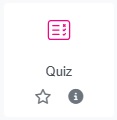
This opens up a new page called New Quiz.
There are many options that you could choose but for now you only need to do the following:
- Your quiz needs a Name. For now, call it 'Final quiz'.
- Under the Grade heading in the Grade to pass field, type '8.00'. This is equivalent to an 80% pass rate, or four out of five questions.
- Click on Overall feedback.
- Go to the first Feedback text box (where the Grade boundary is 100%) and write a message of congratulations to a learner for passing the quiz.
- In the empty Grade boundary field below that Feedback text box, type '79.9%' (a score just below the 80% pass mark).
- Go to the second Feedback text box and write a message telling a learner that they have not passed the quiz and will need to try it again.
- Click on Completion conditions and select Add requirements.
- In the list of options that appears select Receive a grade.
- In the next list of options that appears select Passing grade.
- Then click on Save and display.
Now you've set up a quiz you can add some questions to it.
Before you move on
- Have you given your quiz a name?
- Have you added the passing grade?
In depth
- The Completion conditions setting you adjusted above means that your learners will receive a statement of participation (which we'll come to later) when they pass the quiz. Quizzes aren't the only thing that have these conditions, and you may want to add them to other parts of your course – asking your learners to manually mark a book as complete, for example. If you do this, you need to make it clear at the start of the course what the learners need to do to pass.
- You might want to add more than one quiz – perhaps one for each section?
- Depending on the kind of quiz you set your learners, you may want to adjust the Question behaviour, Review options and Overall feedback settings.