Moving your content around (and moving around your content)
| Site: | OpenLearn Create |
| Course: | CREATE Toolkit |
| Book: | Moving your content around (and moving around your content) |
| Printed by: | Guest user |
| Date: | Monday, 12 October 2026, 2:28 PM |
Description
You can reorder the activities or resources on your course homepage and add links to navigate between them
Reordering activities or resources
You may decide that you need to reorganise the order of some of your activities or resources.
In the editing view of your course’s homepage your activities and resources have an icon of three vertical dots next to them.
Click on this icon to reveal a drop-down menu with the choices Edit settings, Move, Availability, Duplicate, Assign roles and Delete.
Click on Move. Your course homepage now features a series of boxes with dotted lines that show you which places you can move your activity or resource to.
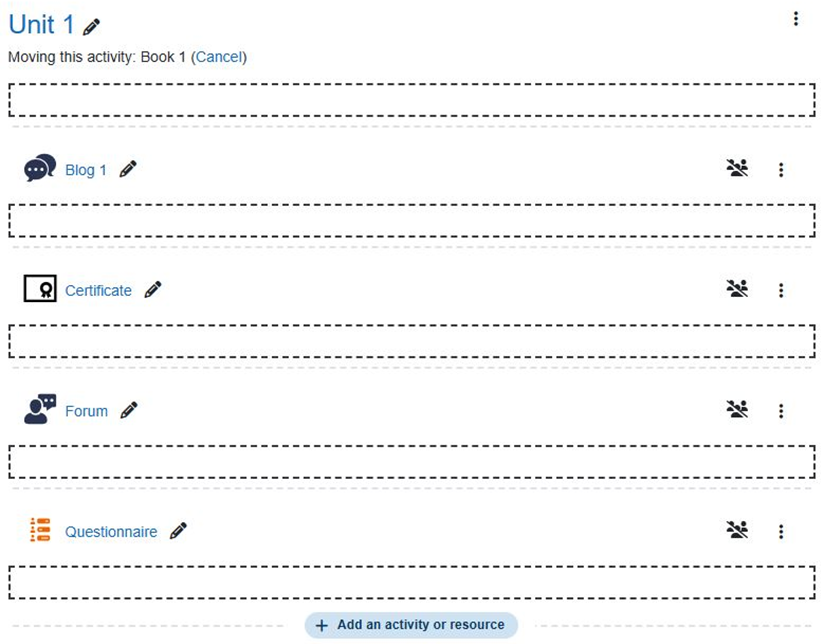
Click on the position you would like to move your activity or resource to. It will then be displayed in your chosen location.
Navigating between different activities and resources
If you have set up a Moodle Book with multiple chapters you will have seen that it automatically generates arrows to get to next and previous pages within it.
How will your learners navigate from a book to a quiz, and then to a forum, and back to another book?
In the Topics layout, each section you have created will be listed on your course’s homepage for as a list under the Course content tab. In the course content itself, the section headings appear on the left-hand side of the screen.
If you click on one of the section headings, a drop-down box appear that makes it easy to navigate to one of the activities or resources in that section.
If you have lots of activities or resources in each section, you will need to set up your own links once you're happy with the order that your content is in.
Setting up the links between pages is described in the ‘Adding resources’ section of this guide, under the heading ‘Adding links between pages’. Using the method described here you should be able to create links between different resources and activities. The creators of the course Observing the night sky: what next? created their own image files for the 'Back' and 'Next' page button links, but text links work equally well.