
Preparation for the face-to-face session

This preparation, comprising Activities 1 to 4, will take around two hours. We expect you to complete these as the course facilitator will be addressing the activities at the beginning of the face-to-face session. Registering for an account on both Microsoft Office Live and Google docs is particularly important as you will have access to both of these spaces during the face-to-face session.
 Activity 1 Registering for an account on Microsoft Office Live
The objective of this course activity is to register for an account on Microsoft Office Live so that you can access this space during the face-to-face session.
Before the facilitated session, go to the Microsoft Office Live website (www.officelive.com/ en-GB [Tip: hold Ctrl and click a link to open it in a new tab. (Hide tip)] ).
From here you can register by clicking on the ‘Get Started Free’ button in the centre of the page. Registration is straightforward. You will be asked firstly to supply an email address. Note that on this page, there is information about what is offered to workspace users in Office Live. The next page takes you to a more detailed registration form, where you will be asked to select a password, enter your name and provide a ‘secret question’ for security purposes. There is also a requirement here to type in a character display – this is to ensure the application for registration is coming from an actual individual rather than through an automated process. You will receive an email into the inbox of your chosen email account to confirm registration. Click on the ‘activate workspace’ link in the email to go back to your Office Live space. If you want to find out more about ownership of documents and setting permissions for access, go to the help menu and click on Managing Your Account. This gives some useful information about adding new users and deciding on their status as administrator, editor and reader.
Activity 2 Exploring Microsoft Office Live
The objective of this course activity is to familiarise yourself with some of the key features of Microsoft Office Live.
The face-to-face session will include an overview of the workspaces provided by Microsoft Office Live. However, viewing one or two of the videos that are available under the ‘create’, ‘add’ or ‘share’ options on the first page will give you an insight into how the system works and how workspaces can be created.
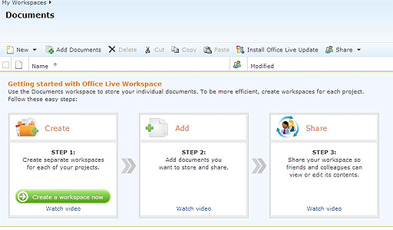
Click through the videos related to these functions of the workspace. The second video, under ‘add’ explains how to add multiple documents (rather than just a single one). This involves installing Microsoft Silverlight. Installing this takes about five minutes and when you close and then re-open your browser, the Add Document option becomes Add Documents. This is only necessary if you intend to add more than one document at any time to the workspace.
As you are exploring Microsoft Office Live, make a note of any ideas you might have for using this facility in your school or classroom. Be prepared to share your thoughts with other participants at the beginning of the face-to-face session.
Activity 3 Registering for an account on Google docs
The objective of this course activity is to register for an account on Google docs so that you can access this space during the face-to-face session.
Google docs is part of the suite of offerings from Google and if you are already a Google Mail (Gmail) user, you will have access to this from the top menu bar from your email account window. Click on Documents (third option on bar) to open Google docs. For non-Gmail users, Google docs is available at http://documents.google.com. Registration is a similar process to Microsoft Office Live. You will be asked for an email address, password and other information, and a character display is provided for security. Click on the link sent to your email account to activate Google docs.
Activity 4 Exploring Google docs
The objective of this course activity is to familiarise yourself with some of the key features of Google docs.
The face-to-face session will include an overview of Google docs. However, you can familiarise yourself with the basic features of the site by clicking on the ‘help’ option on the top right toolbar and selecting ‘Take a Tour’ from the left hand navigation bar on the Docs Help screen.
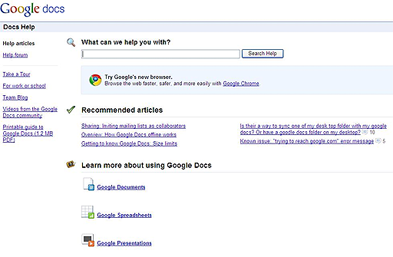
You will see there is a link to templates from the first page – Google docs allows you to use a range of different templates for your documents as well as upload your own. Click through the tour to familiarise yourself with the main features of Google docs.
As you are exploring Google docs, make a note of any ideas you might have for using this facility in your school or classroom. Be prepared to share your thoughts with other participants at the beginning of the face-to-face session. You may already have a preference for one of the two shared document sites – again, think about why this might be the case and be prepared to discuss this when you attend the face-to-face session.
Introduction