3.1 Introduction to computers

6. Installing Hardware and Software
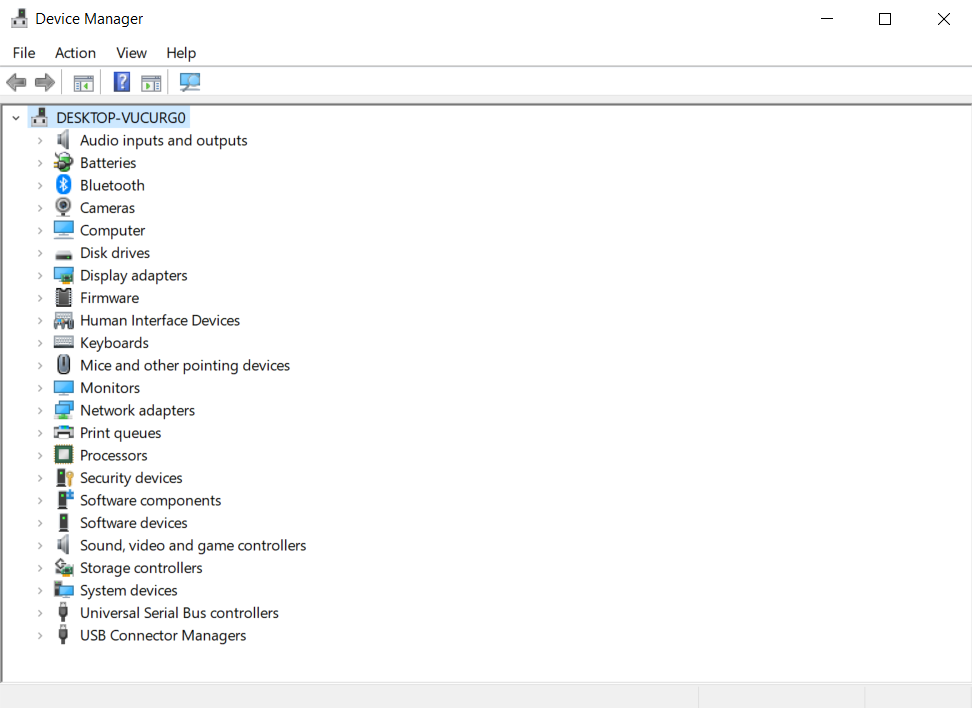
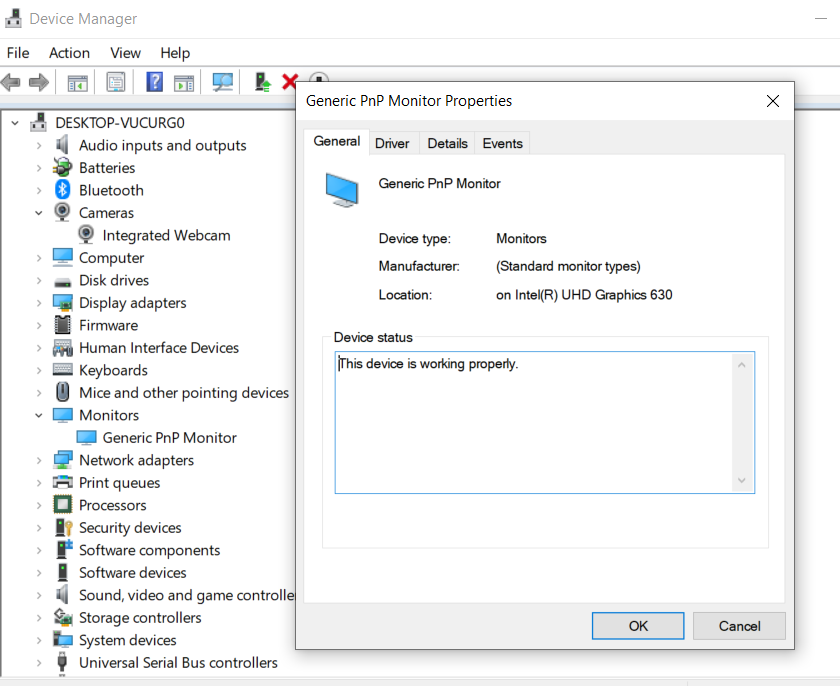
When you plug a new device into your computer (so a new type of hardware), it should automatically be recognised. If you don’t get any message when plugging in a new device, you can check the “Device Manager”. This is a Control Panel in Microsoft Windows OS that allows users to view and control the hardware attached to the computer.

Images of the Device Manager Control Panel in Microsoft Windows OS

Images of the Device Manager Control Panel in Microsoft Windows OS

To install new software programs you can either download them from the internet or install them from a folder on your computer or external device, such as a CD/DVD or USB drive. To install a software application from the internet, open your web browser and type the name of the program in the search bar.
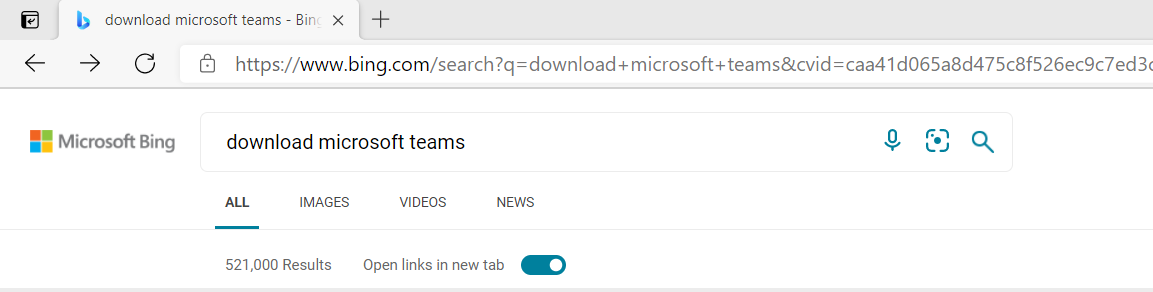
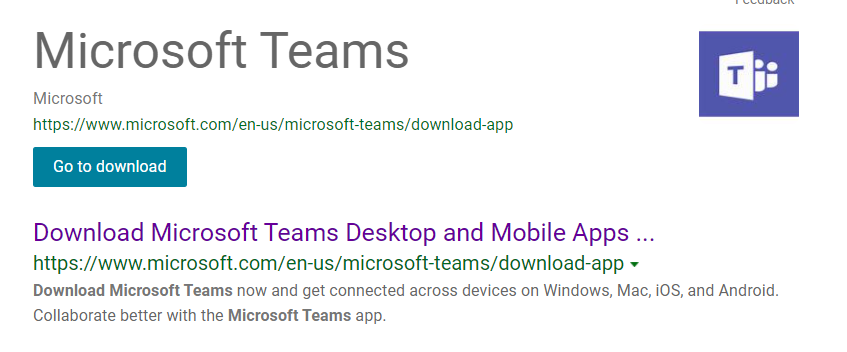
Images of an address bar and items listed from an internet search, download button, downloading a .exe file and the open file

Images of an address bar and items listed from an internet search, download button, downloading a .exe file and the open file

The installation file should be visible via a download button on the webpage as seen in the example below.
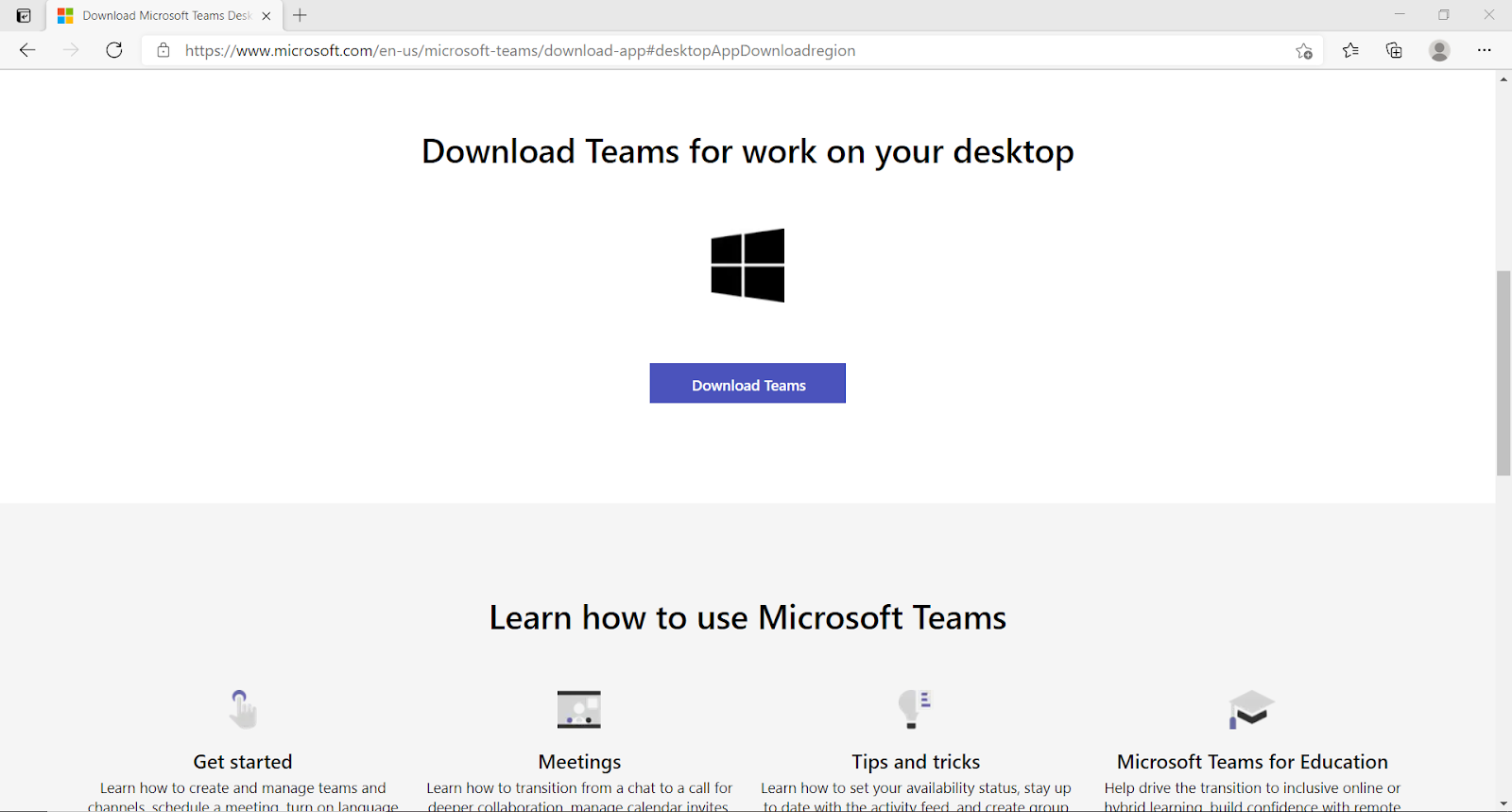
Images of an address bar and items listed from an internet search, download button, downloading a .exe file and the open file

Click ‘Download’ to start the download process. You should be able to view the progress of the download on the bottom left of the webpage. Depending on the speed of your internet connection, this might take some time.
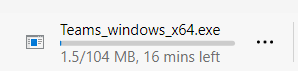
Images of an address bar and items listed from an internet search, download button, downloading a .exe file and the open file

Once the download is complete, simply click on the installation file to start the set up of your new program.

Images of an address bar and items listed from an internet search, download button, downloading a .exe file and the open file

Navigate through the instructions of the installation process. Make sure to read the terms and conditions carefully, if there are any, before agreeing, and fill in any necessary information if required. Finally, select ‘Close’ to complete installation.
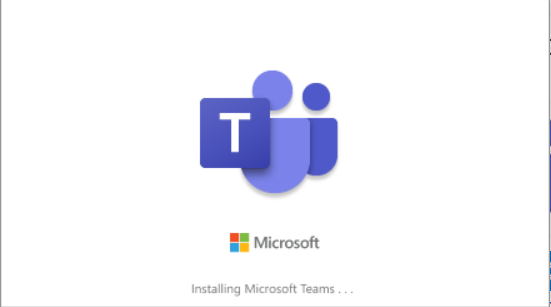
Images of an address bar and items listed from an internet search, download button, downloading a .exe file and the open file