
1.1.7 Documents – what to expect
Creating courses is very much a team effort. As a result, it is very important to ensure that everything is clearly recorded and saved in a communal location. This is where the dog server is used. All documents are saved in a folder on the dog server (\\dog\PrintLive\Corporate). Note that ‘dog’ is just a name used to identify this particular server – no actual canines are involved! Your Project Manager will ensure that you know which folder on dog to use and the correct folder structure has been put in place.
Tip
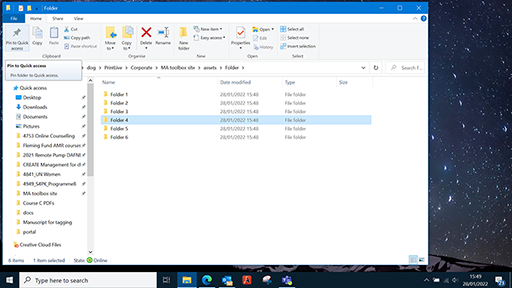
It can be hard to remember where a folder is on dog. You can pin folders in File Explorer to Quick Access. Here’s how to do so:
- Open File Explorer (folder icon on the taskbar).
- Navigate to the folder that you want to pin to Quick Access.
- Select that folder by clicking on it.
- Click the ‘Home’ tab.
- Click the ‘Pin to Quick Access’ button. The selected folder is now listed in Quick Access.
- You can also pin a folder by right-clicking it and selecting 'Pin to Quick Access' in the right-click menu.
The table below shows the documents you are likely to receive or create for a course.
| Document | Description | Creator |
|---|---|---|
| Specification form (Word) | Details of the course including key contacts, learning points, desired outcome (type/length of course), handover, go live dates and other detail. | Course owner and/or Project Manager |
| Badge or Statement of Participation setup (Word) | Full details of the statement of participation (SoP) or badge awarded at the end of the course − this is put together by the author and PM and handed over to the OpenLearn Create Producer. | Course owner and/or Project Manager |
| Asset register (Excel) | Detailed list of all the assets in the course. These include images, infographics, interactives, videos etc. All assets must be on this form to ensure they get added to the production portal. This is a working document and will be added to as production progresses. | Author/Project Manager/DDE |
| Glossary (Word) | All glossary terms listed and defined. The | Author |
| Artwork brief (Word) | Also known as | DDE |
| Quiz (Word) | Most courses have a quiz. The | Author |
| Editing brief (Word) | Noting editing requirements and decisions, specific spellings, anything that is different to OU House Style or particular issues to be aware of. Note – this may be very brief, e.g. 'we're still working on Table 3', or 'ignore xyz'. | DDE |
As noted previously, all projects are slightly different so the above list may vary, but these are the main documents to give all the information needed to be able to create a course.
1.1.6 Final Review