

If you’re looking at content on a small screen, you might find you need to make it bigger so it’s more comfortable to read. On the other hand, some people prefer or need to zoom out to make what they’re reading smaller or so that they can see more content on the screen at the same time – it really depends on the situation and device you’re using. What’s important is having the flexibility to be able to make content bigger or smaller on your screen or device in the way that you want.
There are several ways to make content larger or smaller on a screen. These range from changing the font size in a document to using a full-screen magnifier. We'll introduce some of the most useful options here, including a few you may not have come across before.
One of the most obvious ways to make content bigger, for example the text in a document, is to just increase the text size. It's simple and effective and relatively straightforward – you just select the text on the page and choose the size of the text that you want, for example 12pt. (You just need to remember to reduce the font size again before sharing or submitting the document!)
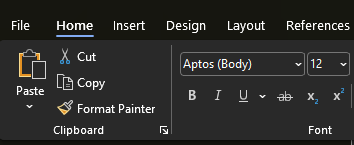 Screenshot of font menu and size location in the Microsoft Word ribbon.
Zoom controls and pinch-to-zoom
If you want to make text and images bigger or smaller in a document or webpage, you can use the zoom controls. Hold down the Ctrl key on your keyboard (or Cmd on a Mac) and press the + key to zoom in, or the – key to zoom out. The more you press the + or – the more it will zoom in or out. Find a size that is comfortable for you. There’s also an easy way to do this with your mouse by holding the Ctrl key and scrolling your mouse wheel.
Some apps or documents will have a slider - usually close to the bottom of the window - that you can drag left or right to zoom in or out. And of course, on touch screen devices such as smartphones and tablets, you can pinch your fingers to zoom on quite a few apps.
Pinching to zoom, using the slider and Ctrl +/- are all useful methods if you want to change the size of your content temporarily, or on a particular document or webpage, but they’re all quite manual ways of making content bigger or smaller. They only work on content, too, so you can’t zoom in on menus or toolbars (see the image below for an example of this). You might only want to change the size of your content temporarily, or on a particular document or webpage, and these methods are fine for that, but what if you want to make everything bigger or smaller all the time? There are easier ways to do this, and one of them is by changing the size settings in your system.
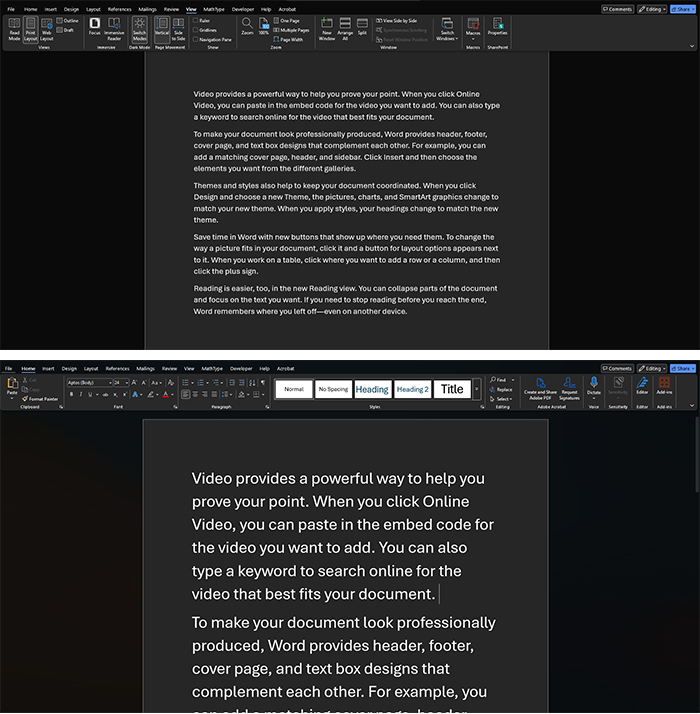 The image shows a split-view comparative screenshot of Microsoft Word running in dark mode, demonstrating different font sizes for the same body text.
When zoom isn’t enough
Changing your system settings affects your whole device and means you won't need to adjust each app or website individually. It can also increase or decrease the size of menus, buttons, toolbars and other interface elements, not just text and images.
On most devices, such as smartphones, tablets, or laptops, there will be an option to change the text size in the settings menu. You’ll usually find a text size slider to move left or right to increase or decrease the size of the text across all the apps and menus on your device. Having all system text appear larger (or smaller) can look unusual at first, especially if you’ve been using your device for a while, so it might take a few adjustments and patience to find a size you’re comfortable with.
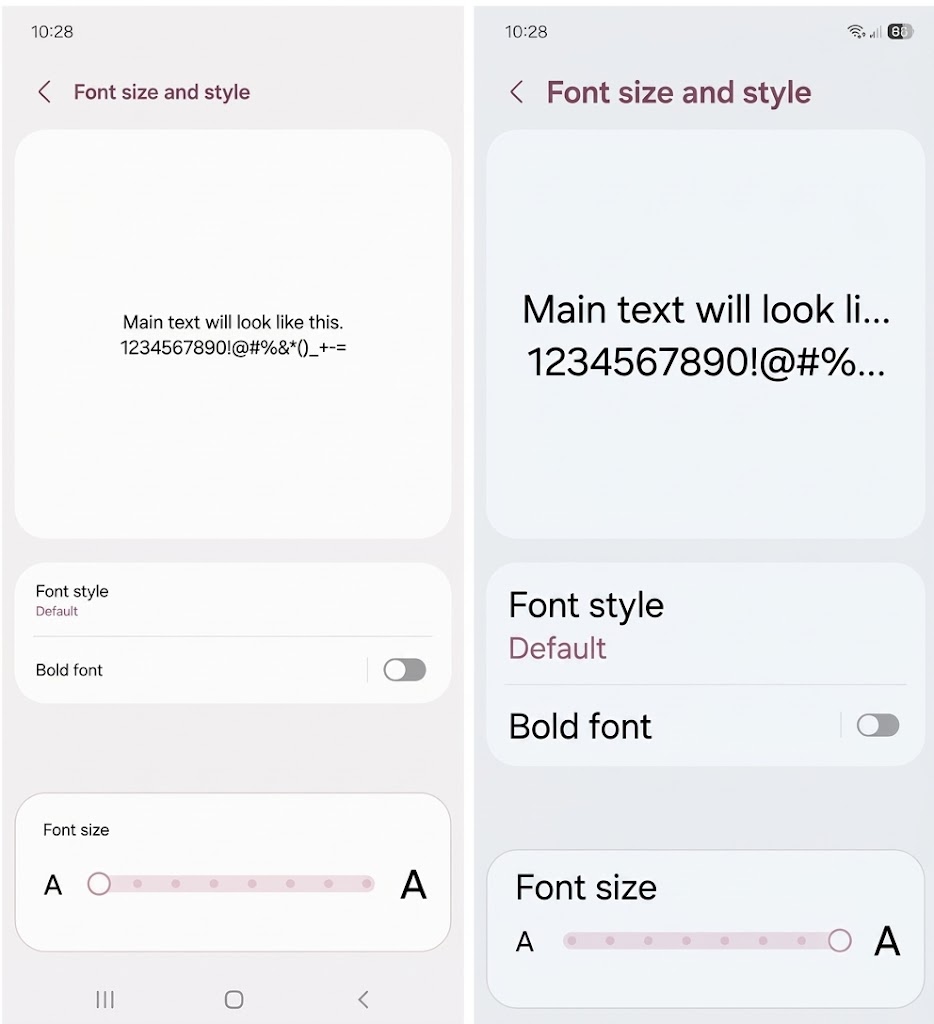 Two screenshots of the Font size and style page on an Android device. The left-hand image shows an example of text in small font size and the right-hand image shows an example of text in large font size.
Benefits of changing content size
Being more comfortable with the size of the text you’re reading is so important, not just for the obvious reason of making sure content is easier for you to see. By making things more comfortable to read you are less likely to strain your eyes or lean towards the screen. Most of us could do with improving posture when we’re sitting at our desks or using handheld devices, and making the text size more appropriate to what you need can help do that. This means you’ll reduce tension, which could also allow you to use your devices for longer periods of time.
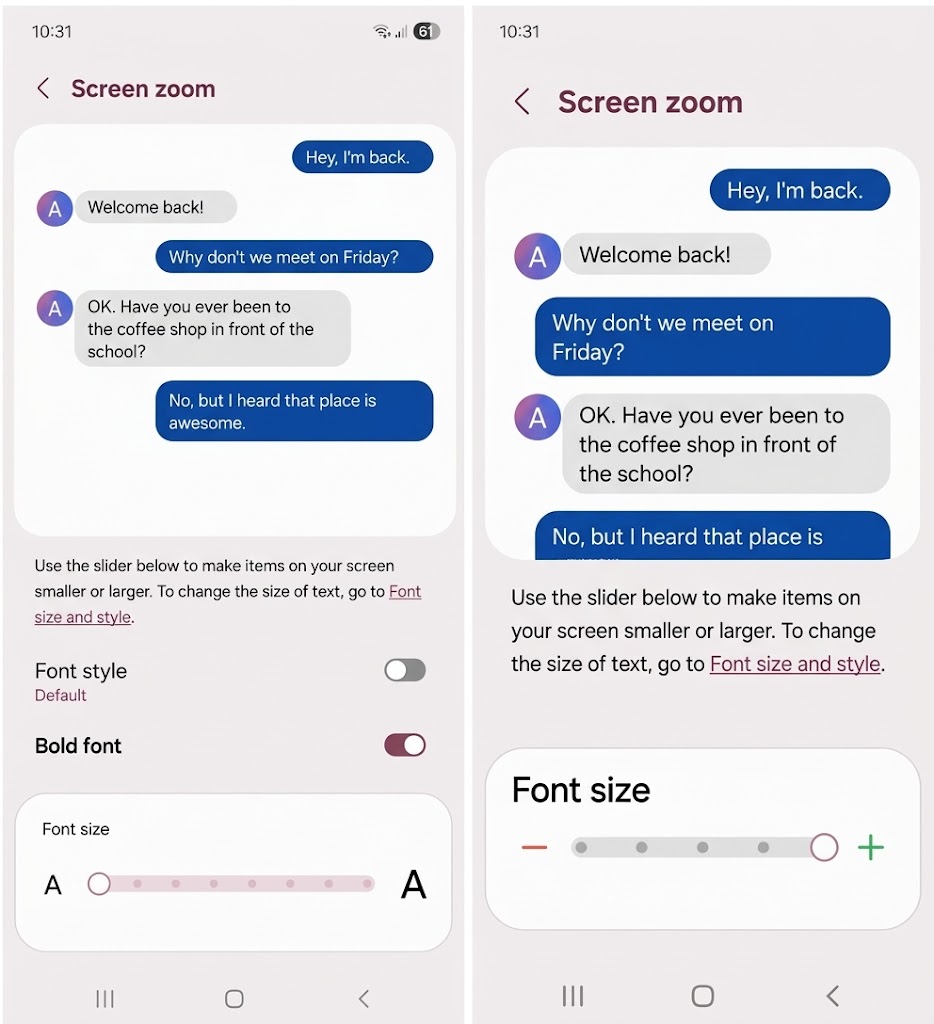
Two screenshots of the Screen zoom page on an Android device. Both screenshots show a text conversation followed by the instruction: 'Use the slider below to make items on your screen smaller or larger. To change the size of text, go to Font size and style. The left-hand screenshot has a slider beneath it with the slider knob set to the first (leftmost) position. The right-hand screenshot has a slider beneath it with the slider knob set at the far right notch, showing the zoomed-in state.Issues and limitations of changing content size
It's not all good news though unfortunately…! Some websites, if they’re old or poorly made, don’t always respond well when they’re zoomed in, especially if you’re using a handheld device and switching between portrait and landscape orientation. This means you might experience bits of content disappearing or ‘dropping off’ the screen, or sometimes words or sentences don’t quite fit as they should, so might be cut short.
Also, you’ll need to take care if you’re changing the display size and you increase the size by a large amount. This can completely change the layout of your screen, making interacting with certain windows and content quite awkward. It’ll all take a bit of getting used to and patience while you’re experimenting with changing content size.
If you’re trying to make your content larger and find that the options given above just aren’t quite making it large or clear enough for you, there’s another option you could try: a screen magnifier.
 Side-by-side comparison image demonstrating poor responsive design and text truncation when content is scaled up or zoomed in.
Screen magnifiers
You’ll find screen magnifiers on all types of devices and operating systems. On MacOS and iOS, it’s called ‘Zoom’, on Android, it’s called ‘Magnification’ and on Windows, you’ll find ‘Windows Magnifier’.
How it works
A screen magnifier behaves in the same way as a real magnifying glass – it’ll enlarge everything you’re looking at on that part of the screen and, as you’re typing, it’ll move with you so you’ll only see the portion of the screen directly beneath it.
By moving your mouse pointer to the edge of the magnified area, you will move the position of the magnifier to other parts of the screen so you can scroll smoothly through every part of the screen at a size that is easily viewable for you. It’s similar when you’re using touchscreen devices, only you need to use special gestures with your fingers to move the magnifier around.
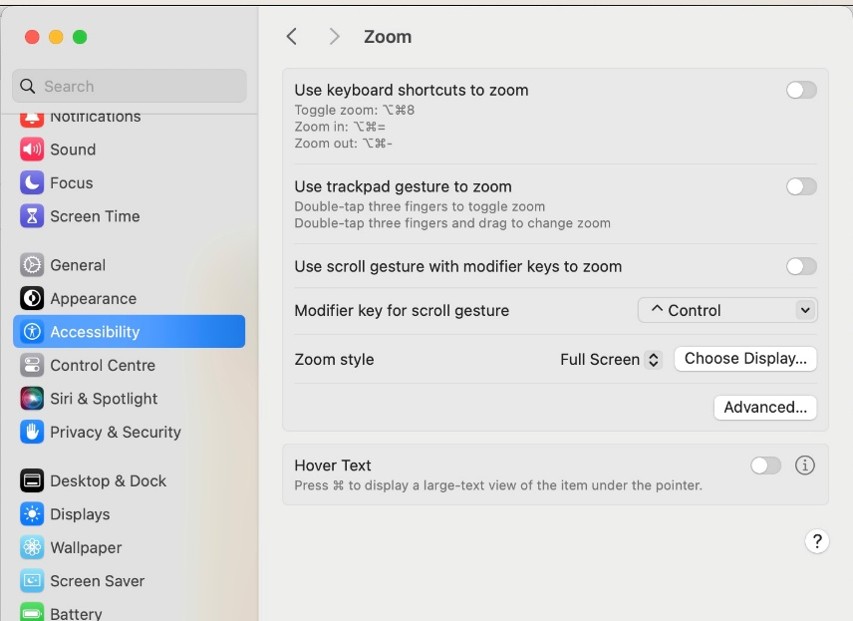
A screenshot showing the macOS System Settings interface focused on the Zoom accessibility menu. Left Navigation Sidebar: Displays system settings categories with Accessibility selected and highlighted in blue. Other visible categories include Notifications, Sound, Focus, Screen Time, General, Appearance, Control Centre, Siri & Spotlight, Privacy & Security, Desktop & Dock, Displays, Wallpaper, Screen Saver, and Battery. Main Settings Pane (Zoom Panel): Use keyboard shortcuts to zoom: Toggled off (gray slider on the right). Lists shortcuts: Toggle zoom: ⌥⌘8 Zoom in: ⌥⌘= Zoom out: ⌥⌘- Use trackpad gesture to zoom: Toggled off. Subtext explains gesture actions: Double-tap three fingers to toggle zoom Double-tap three fingers and drag to change zoom Use scroll gesture with modifier keys to zoom: Toggled off. Modifier key for scroll gesture: Set to ^ Control via a dropdown menu. Zoom style: Set to Full Screen via a dropdown menu, accompanied by a Choose Display... button. Advanced...: A button located near the bottom-right of the upper section for further customization options. Hover Text Panel: A separate section below toggled off. Subtext reads: "Press ⌘ to display a large-text view of the item under the pointer." Includes an info (i) icon next to the toggle switch.
Advantages of screen magnifiers
There are some real advantages to using screen magnifiers:
- You can get much greater text sizes with a screen magnifier.
- They work across all apps, menus and settings
- Because it is like using a magnifying glass, it doesn’t affect the layout or structure of the content so you can interact with it as you would normally do and zoom in and out easily on any part of the screen.
Screen magnifiers give you the flexibility of making everything bigger and easier to see, even the finest details, without losing the original formatting. However, some people find it difficult to get used to the feeling of holding a digital magnifying glass. It’s also unusual getting used to not seeing the whole screen at once, but it is worth giving it a go until it becomes more comfortable as it makes the whole device much more accessible.
Things to consider
It is important to note that simply making everything very big may not be the best solution for your needs. If you have magnified to a very high level so that you are only seeing a very tiny proportion of the screen at any one time, it may be worth using some read aloud features or possibly a full screen reader.
Things to try: zoom
In your next study session:
- zoom in by 10-20%
- read for 15 minutes
- notice whether you're leaning less towards the screen.
Comfortable reading often improves concentration too.
Improving readability
By finding the optimum font size for you, you will be able to improve the readability of what you’re reading or working on. However, readability isn't just about font size. Changing the following can sometimes improve readability just as much as increasing font size:
- text alignment
Changing the type of font can improve readability because some fonts appear fatter and more spaced out. Have a look at these examples below, they’re all the same size, 14pt, but look like different sizes!
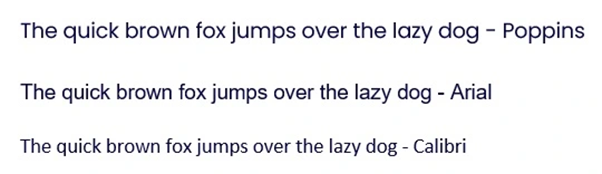
An image displaying three lines of text set against a white background, demonstrating the pangram "The quick brown fox jumps over the lazy dog" rendered in three different sans-serif typefaces: Top Line: Rendered in the Poppins font, featuring geometric letterforms with circular counters (such as in 'o', 'q', and 'p'). Middle Line: Rendered in the Arial font, displaying standard grotesque sans-serif proportions. Bottom Line: Rendered in the Calibri font, showing slightly narrower proportioning with softly rounded stem corners and terminals.
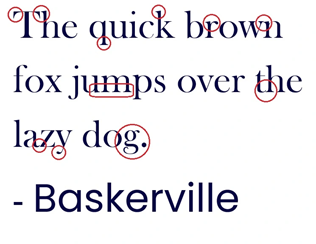
An image displaying three lines of main text set in the transitional serif typeface Baskerville, followed by a label identifying the font name. Specific typographic details and anatomical features of the letters are highlighted with red circles and a red rounded rectangle. Main Text: The pangram "The quick brown / fox jumps over the / lazy dog." split across three lines in a dark blue, high-contrast serif font. Red Highlights (Typographic Features): Line 1: Two circles highlighting the sharp, bracketed serifs at the top left and top right of the capital letter 'T'. A circle around the dot (tittle) of the lowercase 'i'. A circle emphasising the top ascender serif of the letter 'k'. A circle pointing out the ear/arm details of the lowercase 'r'. A circle around the upper-right corner apex of the letter 'n'. Line 2: A horizontal oval encircling the lower stroke/counters of the letter sequence 'um' in "jumps". A circle emphasizing the crossbar and vertical stroke junction of the letters 'th' in "the". Line 3: Two small circles highlighting the descender terminal and diagonal join of the letter 'y' in "lazy". A circle highlighting the open lower loop (g-clef tail) and period following the letter 'g' in "dog.". Bottom Label: Reads "- Baskerville" set in a contrasting, clean sans-serif typeface.
One final thing, reading can be made easier when the text is aligned to the left. In newspapers, you might see justified text, where it’s stretched to fit the left and right margins of a document. This can be difficult to read for some people because it creates lots of uneven white spaces between words. Aligning text to the left is the most natural and readable option, as it helps people focus and track sentences to the next line.
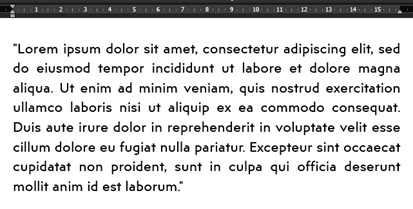
A justified paragraph of classic Lorem Ipsum text rendered in a clean, sans-serif font against a solid white background
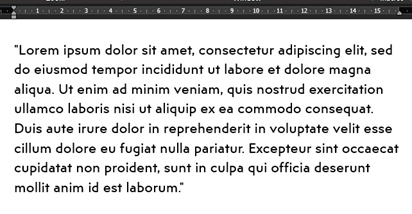
A left-aligned paragraph of classic Lorem Ipsum text rendered in a clean, sans-serif font against a solid white background.
Explore our suite of resources on assistive technology, software and tools designed to help you set up your technology so it works for you and your studies.
Level: 1 Introductory
Explore the benefits of using text readers when studying.
Level: 1 Introductory
Learn about the screen adjustments you can make to improve your online study experience.
Level: 1 Introductory
When you can’t (or don’t want to) use a keyboard or a mouse – you can use your voice instead.
Level: 1 Introductory
Discover more content like this
Free tech tools to help you study

Listening to content aloud
Screen adjustments
Dictation and voice control
Rate and Review
Rate this article
Review this article
Log into OpenLearn to leave reviews and join in the conversation.
Article reviews