

What this resource is about
Are you new to being a student and setting up your laptop ready to study? Or perhaps you're returning after a break and getting back into the swing of things. You may already have preferences for how your devices are set up. For example, you might like dark mode, prefer having documents read aloud, or find larger text easier to read. Or maybe you don’t know what you prefer? (But would like to find out!)
In this series of articles you will be shown different ways to set up your tech and different software solutions which might make it more comfortable for you to study. We’ll look at what they are, what they can do, and where you can find them.
There isn’t time to cover everything (there’s so much tech out there, we just don’t have the time to write about it all!) and we can’t go into lots of detail like step-by-step instructions of how to set software up on your devices. What the articles will do though is give you a bit of an overview and point you in the right direction so you can start to experiment and investigate for yourselves.
Everyone's needs and preferences are different, so it's worth taking some time to explore the options available. What works for one person might not work for another. It’s important to take the time to see what’s available and spend some time exploring it to see what suits you.
-
Listening to content aloud
Read now to access more details of Listening to content aloudExplore the benefits of using text readers when studying.

Level: 1 Introductory
-
Screen adjustments
Read now to access more details of Screen adjustmentsLearn about the screen adjustments you can make to improve your online study experience.

Level: 1 Introductory
-
Changing the size of digital content
Read now to access more details of Changing the size of digital contentDiscover practical solutions for making your digital content easier to engage with.

Level: 1 Introductory
-
Dictation and voice control
Read now to access more details of Dictation and voice controlWhen you can’t (or don’t want to) use a keyboard or a mouse – you can use your voice instead.

Level: 1 Introductory
Why these resources might help
We hope that these resources will be useful for lots of students. If you’re tech-savvy and spends lot of time on a screen, you might want to adjust screen colour and brightness to make things easier on your eyes for long study sessions. Or the opposite: you might be less confident with technology and need a little help to become more confident exploring the options out there.
You might be waiting for funding through the Disabled Student’s Allowance (DSA) for specialist software. While you wait, you may need a free alternative to help you study, there are lots of them to choose from, so why not give them a go?
Remember: There is no ‘best’ setup
What works brilliantly for one student might not work for another. The goal isn't to find the perfect tool. It's to discover what works best for you.
Devices
It is impossible for us to list all of the software, devices, laptops and browsers, there are just too many! However, before we get started with changing settings or experimenting with features, there are a couple of really useful starting points to consider.
Apple
For those of you using Apple devices such as iPhones, iPads, or Macs, under ‘settings’ you’ll find a menu called ‘accessibility’. Here you’ll find a range of options which you can experiment with. The resources will cover some of these features.
Apple devices include many accessibility features that are free and available to everyone. You can customise your device in different ways to suit your needs. In the Accessibility menu you'll find options relating to vision, hearing, mobility, speech and cognitive accessibility.
We’re big fans of the guidance Apple provides for their accessibility features, as they’re good at explaining what the features are and how to use them, whether that’s in their written guidance, or in the video explainers they make.
Android
If you’re an Android user, you’ll find a similar range of accessibility features on your Android device under their settings menus. The features are covered on the Android Accessibility website, and you’ll find lots of videos on YouTube if you need to find out more about a feature on the particular device you’re using.
Windows
If you use Windows on your computer or laptop, then there are a range of inbuilt features to explore, some of which will be covered in our guide. Again, Windows has some great guidance about their accessibility features, with video explainers, step by step instructions, and screenshots to help you set up these features properly.
My Computer My Way
Another really useful set of guidance is called ‘My Computer, My Way’ from Ability Net. This is a set of simple ‘how to’ guides to make your devices easy to use. They offer step by step instructions on how to adapt your phone, computer, or tablet to meet your needs. It's easy to use and makes a useful reference guide. Use the filters to search by device, accessibility need or the adjustment you'd like to make.
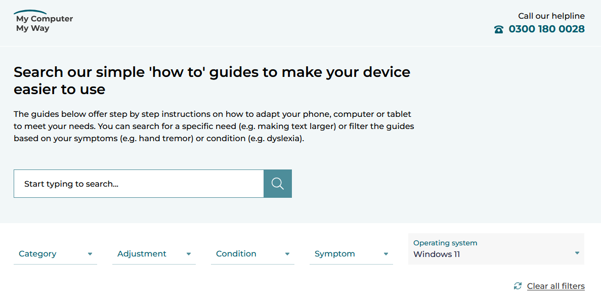 Screenshot of My Computer My Way. The text on the screen reads: Search our simple 'how to' guides to make your device easier to use. The guides below offer step by step instructions on how to adapt your phone, computer or tablet to meet your needs. You can search for a specific need (e.g. making text larger) or filter the guides based on your symptoms (e.g. hand tremor) or condition (e.g. dyslexia).
Your tech check-up
Before reading any further:
- Check your device settings for an Accessibility menu.
- Find one feature you've never noticed before.
- Turn it on for five minutes and see what happens.
- Make a note of anything that feels more comfortable or easier to use.
We hope that you find these resources a helpful introduction to some of the free and accessible tech and software solutions out there. It’s not exhaustive list because there are so many options to explore. Once you’ve explored these, we hope you explore your options further – experiment with them and find out what works for you and how you enjoy studying.
Things to try: build your own study toolkit
Choose one feature from each article:
- Text-to-speech
Use them for a week and make a note of what helps.
Who we are

My name’s Jade, I look after the accessibility team at The Open University (OU). We take care of the websites and systems our staff and students use and help develop them so that they’re accessible and usable. I’m also a part-time student at the OU. All of this means that I spend a lot of time looking at screens, probably too much time! To reduce eye strain, I adjust the brightness and colour settings on my devices. I also like being able to change text size easily. Read aloud software helps me get through long academic papers more efficiently.

My name is Ryan. I am the Hearing and Vision Adviser at the OU. I work with students to help identify ways to use existing features and specialist software/hardware to make studying more comfortable and accessible. I specialise in options for blind or partially sighted students and deaf students. I am a big fan of low-cost or no-cost options. They are available to many people, easy to use and often highly effective. You just need to know that they exist and where to find them. That’s why we have created this guide. My personal favourites are Immersive Reader (I find the teal page colour stops the words dancing on the page for me) and Read Aloud (helps me to get through even the most boring documents without losing focus). Hopefully you will find features that you didn’t know about that can really help you.
Rate and Review
Rate this article
Review this article
Log into OpenLearn to leave reviews and join in the conversation.
Article reviews