

Have you used a text reader before? They do exactly what they say they do – read text aloud by converting text in documents and webpages to spoken audio. Often they also highlight the text being read so you can follow along visually. Many people find that having the audio and being able to read along improves reading comprehension and focus because it supports their processing style more effectively. It can make reading less frustrating and more efficient, which is always useful when you consider just how much reading you need to do when you study! You don't have to read along while listening though. Some people choose to listen to study materials while exercising, travelling or doing household tasks. It can be a useful way of making study time more flexible.
Did you know?
What can a text reader do?
Most devices such as tablets, phones, and laptops have some form of text reader function to assist with reading. These functions might not be called ‘text readers’, they might be called different things such as text-to-speech or read aloud, but they all pretty much do the same thing. In the same way, they might have different icons or different ways that you activate them depending on the device and the apps you use.
Features vary between devices. However, most text readers allow you to listen to content while controlling playback, speed and voice settings. Features include:
- Play/Pause, some text readers will read all of the visible text on a page, for others you’ll need to highlight the text you want it to read.
Screen readers
It’s worth noting that you might hear of software called a screen reader. There’s a big difference between these and text readers. Text readers generally read only the text on a page. Screen readers do much more. They can read menus, buttons, icons and other interface elements. Screen readers also allow users to navigate websites and applications. They are commonly used by blind and partially sighted people to access digital content.
Where can you find text readers?
There are lots of paid versions of text readers, and you might have been recommended one through the Disability Student’s Allowance (DSA). However, there are also many good-quality, free options which are in-built into your devices and browsers. We’ll have a look at some options now.
In-built browser text readers: Read Aloud
Sometimes it’s easy to find a text reader when using a browser; they're very often built in. For example, if you’re using Microsoft Edge, you can just right click and the built in Read Aloud feature appears in the menu. For other browsers, they can be a little hidden. You might need to look through your browser settings to find a text reader feature. Look out for some kind of icon which looks a bit like a speaker as that’s very often how text readers are represented.
 Read Aloud icon Browser extensions
As well as the built-in text readers, you can also download extensions to browsers. These are small bits of downloadable software which add a specific feature, in this case, a text reader. They’re very often free and available on all browsers, it’s worth having a look to see what’s available on your preferred browser.
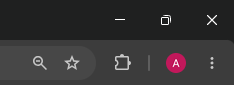
Screengrab of a Google chrome browser showing toolbar icons: Puzzle Piece Icon: The Extensions button used to view and manage browser extensions. Profile Circle: A magenta circle with the letter A, indicating the signed-in Google profile/account. Three Vertical Dots: The main Google Chrome menu button ("Customize and control Google Chrome").
On your phones or tablets
iOS has in-built and free options to read text aloud. You’ll find them under the ‘Read & Speak’ section of the accessibility menu. You’ll find options for Speak Selection, which reads aloud text you’ve selected, or Speak Screen, which reads out the whole screen. They are both quite easy to use and have a range of options to customise. Similarly, Android devices have a Select to Speak feature along the same lines.
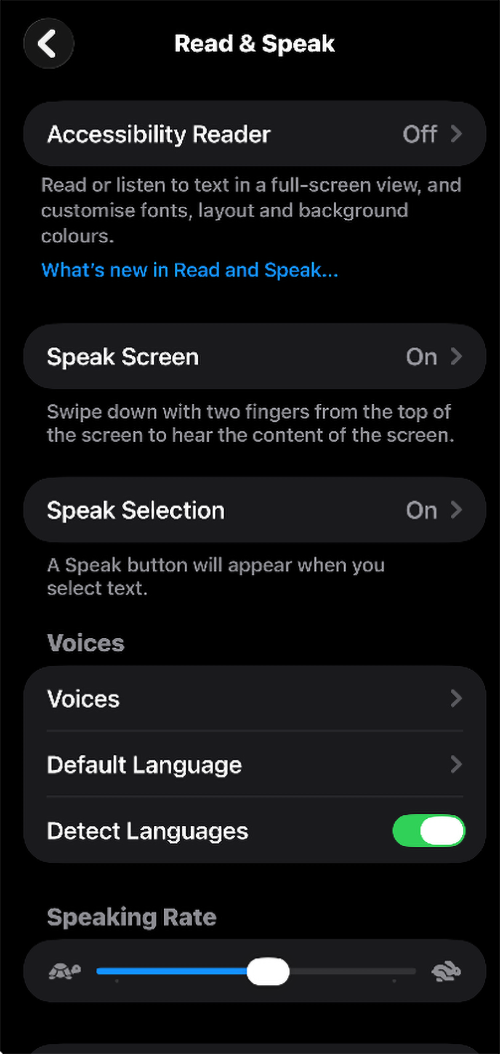
Screenshot of Read & Speak menu on an iOS device. Menu Items: Accessibility Reader: Set to Off >. Below it, text reads: "Read or listen to text in a full-screen view, and customise fonts, layout and background colours." Followed by a hyperlink reading "What’s new in Read and Speak..." Speak Screen: Set to On >. Below it, text reads: "Swipe down with two fingers from the top of the screen to hear the content of the screen." Speak Selection: Set to On >. Below it, text reads: "A Speak button will appear when you select text. Voices Group: Voices; Default Language; Detect Languages. Speaking Rate: Features a horizontal slider bar. A turtle icon is displayed on the left (slow speed), and a rabbit icon is displayed on the right (fast speed).
iOS has gone one step further and introduced an Accessibility Reader, which has additional features for customising fonts, layouts, and background colours.
Why student's like Microsoft's in-built text reader: Immersive Reader
Now let’s have a look at Microsoft’s Immersive Reader tool. It’s useful to mention this because it’s very popular. You can find it in most Office 365 programs and in the Microsoft Edge browser. It has a lot of really useful functionality and is quite easy to use.
When you open it, text is presented in a special reading window that removes additional distractions like page layout, ads and navigation links and focuses on the content you are currently reading.
You can resize the text if you want by making it bigger or smaller, space out the lines or letters, and can even choose from a range of page colours for one which you find comfortable to read. Changing the page colour can help reduce visual stress and cut down on the ‘movement’ of the text on screen which can help you avoid having to re-read text for it to make sense. When you want to read and listen at the same time, text is highlighted as it is read aloud to make it easier to follow along, which really helps to process information.
Once you’ve finished reading, you can exit the Immersive Reader and the document will return to its original formatting – you don’t have to have it switched on all the time.
Take a look at this video from Microsoft to see what it looks like and get to know some of the features.
Things to try: listen instead of read
Choose a short article, webpage or document and:
- Read it normally.
- Come back later and listen to it using a text reader.
- Compare the experience.
Which felt easier to concentrate on? Which helped you understand the content better?
Explore our suite of resources on assistive technology, software and tools designed to help you set up your technology so it works for you and your studies.
Level: 1 Introductory
Learn about the screen adjustments you can make to improve your online study experience.
Level: 1 Introductory
Discover practical solutions for making your digital content easier to engage with.
Level: 1 Introductory
When you can’t (or don’t want to) use a keyboard or a mouse – you can use your voice instead.
Level: 1 Introductory
Discover more content like this
Free tech tools to help you study

Screen adjustments

Changing the size of digital content

Dictation and voice control

Rate and Review
Rate this article
Review this article
Log into OpenLearn to leave reviews and join in the conversation.
Article reviews