
Finding a comfortable screen setup
Lots of people take advantage of changing the colour and brightness settings on their devices. It’s a really useful feature because it can help you improve focus by reducing glare and strain on your eyes – particularly important given the amount of time we all spend staring at screens! Changing these settings can also help people who are susceptible to headaches from too much screen time.
Comfort matters
Screen brightness
Something as simple as reducing the brightness of your screen can have a big impact on the amount of strain you put on your eyes. You can do this easily by searching the settings of your laptop or device.
Alternatively, you can download software (sometimes it’s free!) which can be installed on your computer to change the temperature of your screen brightness. For example, by warming up your screen at night and reducing blue light it can help you relax and wind down before bed.
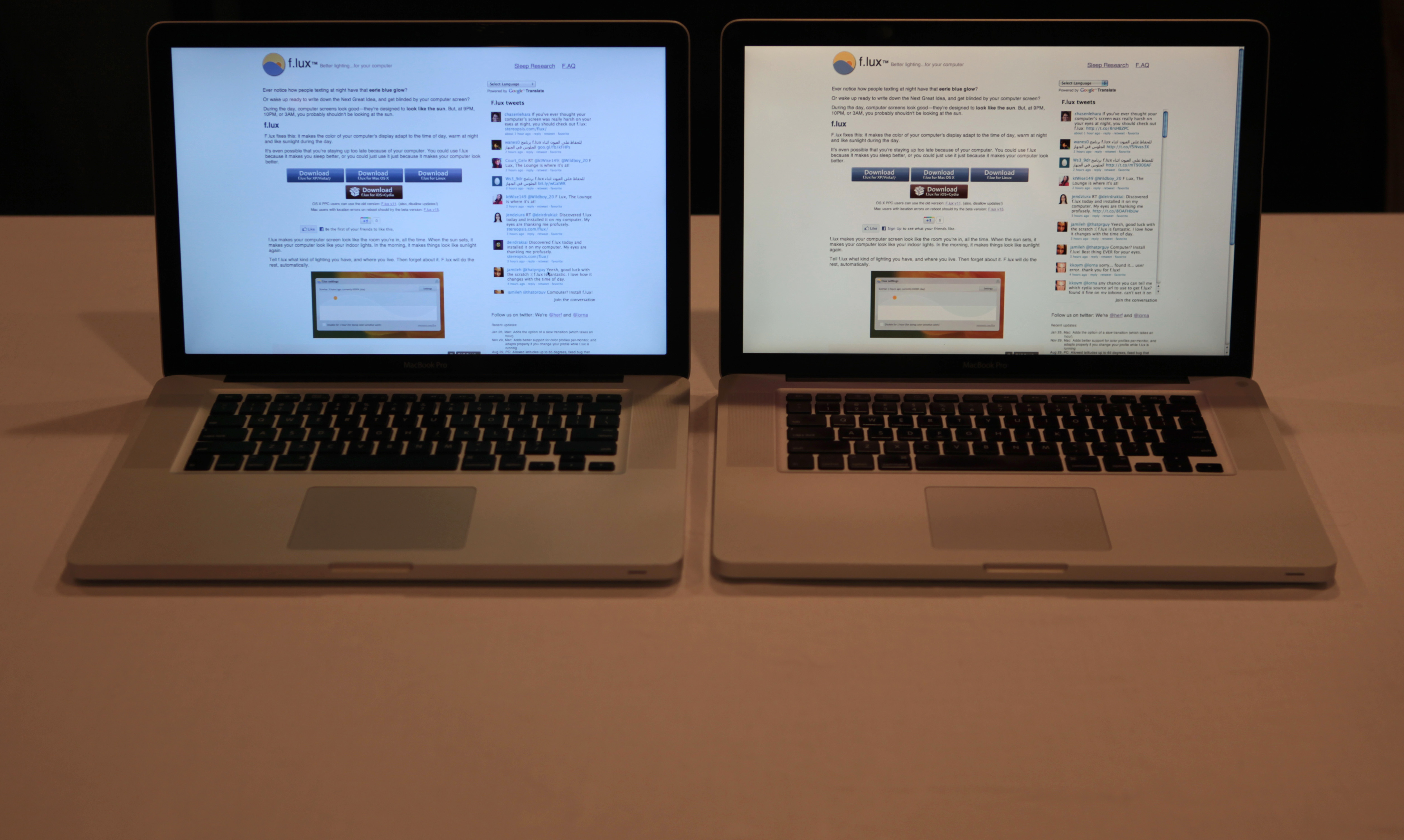 Two laptops side by side, showing the same page on the screen. The screen on the left has appears more white/blue; the screen on the right appears more yellow/red
Changing colours and contrast
Dark mode
One of the most common ways to experiment with changing colour on your screen is to use dark mode. This changes the background colours and text, swapping light backgrounds with dark text to dark backgrounds with light text. When using this setting, just the text and background colour are changed, videos and images remain in their original colours.
Dark mode benefits people when they’re reading on a screen at night in lower light. You can set up dark mode in your device’s main settings under display or accessibility, use a browser extension or some apps also have a dark mode. There are browser extensions for dark mode, too, and on your phones and tablets, this feature is a staple. You’ll find it under the display or accessibility settings. Some devices have a setting to automatically switch to dark mode in low light environments. Another advantage of dark mode is that it saves your battery!
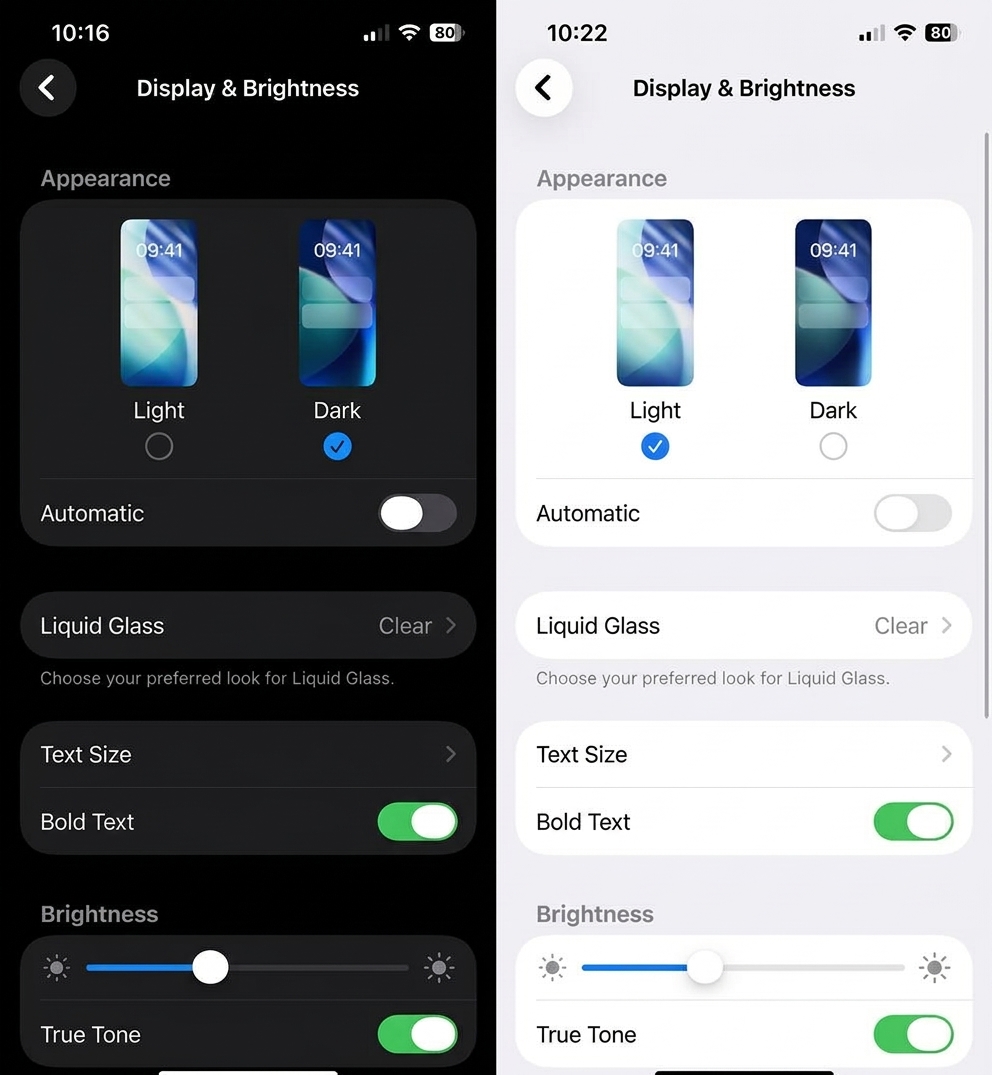 Display & Brightness screen shown on the left in dark mode and on the right in light mode
Things to try: dark mode challenge
Try dark mode for one evening of study.
- Does it feel more comfortable?
- Does it reduce glare?
- Is it easier or harder to concentrate?
You can always switch back.
High contrast mode
Another screen adjustment feature you might encounter is high contrast mode. Without getting too technical, you can think of it as a more specialised version of dark mode. Instead of swapping light and dark, it inverts colours and promotes the contrast between text and background colours to increase the ease of reading.
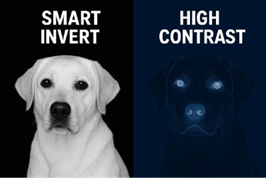 A split-screen comparison demonstrates accessibility visual modes using an image of a dog. Left Side ("SMART INVERT"): Displays bold, white text reading "SMART INVERT" against a solid black background. Below the text is a clear, greyscale portrait of a light-colored Labrador facing forward. Right Side ("HIGH CONTRAST"): Displays bold, white text reading "HIGH CONTRAST" against a dark blue background. Below the text, the same dog appears deeply darkened into near-black shadows, with bright, glowing cyan features highlighting its eyes, nose, and faint outline.
High contrast mode settings will change system-wide colours so that menus, settings and toolbars are all high contrast colours. This should avoid issues like white text on a bright or light background that can be very difficult to read. Some devices, most notably laptop and desktop devices, will offer a high contrast light and high contrast dark setting.
Whereas dark mode is more of a style or comfort preference, high contrast mode is used by people who want to improve accessibility and readability – so people with dyslexia, for example, or someone who has a visual condition. It’s worth exploring the high contrast mode settings to see if it helps you.
Common issues and limitations
There are loads of settings and modes for you to experiment with when it comes to adjusting screen settings, and there are some really obvious benefits to doing this. But there are a few things which can occasionally go wrong when you change screen settings. It might take some patience while you familiarise yourself with new settings and how everything behaves and looks in their new colours.
One, unfortunately common, issue with using screen adjustment tools such as high contrast and dark mode occurs because of poorly made websites. For example, some website makers don’t check that there’s enough contrast between the colour of the text they use and the background (e.g. you might have seen people who use light grey text on a white background), which means that when you view the website in high contrast or dark mode, the text might seem to change colour in a strange way or even disappear!
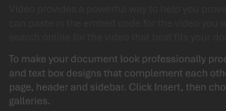
Screen shown in dark mode with low contrast text.
Watch out
Explore our suite of resources on assistive technology, software and tools designed to help you set up your technology so it works for you and your studies.
Level: 1 Introductory
Explore the benefits of using text readers when studying.
Level: 1 Introductory
Discover practical solutions for making your digital content easier to engage with.
Level: 1 Introductory
When you can’t (or don’t want to) use a keyboard or a mouse – you can use your voice instead.
Level: 1 Introductory
Discover more content like this
Free tech tools to help you study
Listening to content aloud
Changing the size of digital content
Dictation and voice control
Rate and Review
Rate this article
Review this article
Log into OpenLearn to leave reviews and join in the conversation.
Article reviews