

3 What does a Turnitin report look like?
When you open your report, you will see a percentage, a list of matched sources with a smaller percentage on the right, and corresponding highlighted matches in the main body of your assessment submission on the left. An example is shown in Figure 2.
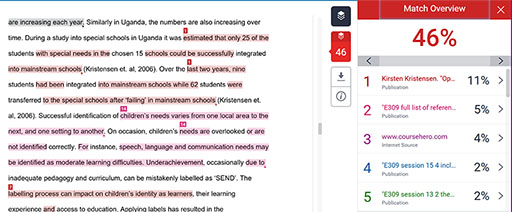
To access the list of sources that Turnitin has matched to your assessment, you need to click on the number listed in the tools block in the centre of your report.
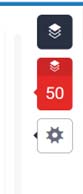
It is important that you explore these buttons and tools so you are familiar with the report. There are additional videos and blogs that might help you on the Turnitin website [Tip: hold Ctrl and click a link to open it in a new tab. (Hide tip)] .
The list of sources matched to your work are hyperlinked, so you can click on each to take you to the website or publication that your work has been matched to.
If the match is to another student, you will not be shown the other students work, but you should still check the text that has been highlighted in your own document.
In Figure 4, you can see three matches to student papers (these will not be shown to you) and one match to a website (#3). If you click on that link, you will be taken to the website where you will see the matching text.
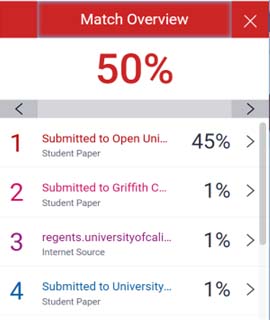
All matches should be checked to ensure you have cited, referenced and paraphrased successfully. In the next section you will learn how to understand your similarity report in more detail.