
Getting Ready: Download GAMS and the UNI-CGE Model
To access, download and install the demo version of GAMS, follow these steps:
A. Go to the download page on the GAMS website at www.gams.com/download
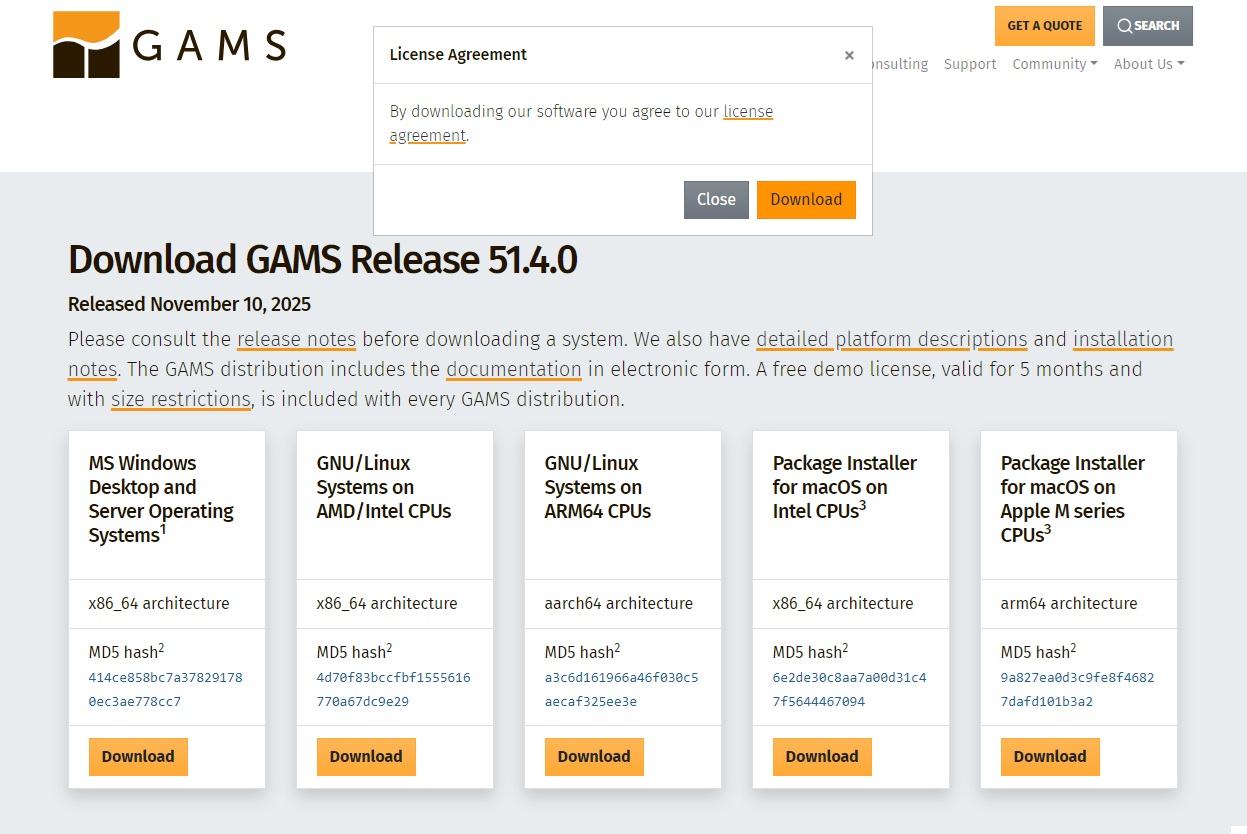
B. Select the Download that matches the operating system on your computer (Figure 1). Then click on the “Download” button. This will download the Installation Wizard onto your computer. The installer program will have an .exe suffix. You can download it into your Download folder or choose another folder.
Figure 1. Download Page on GAMS (01 December 2025)
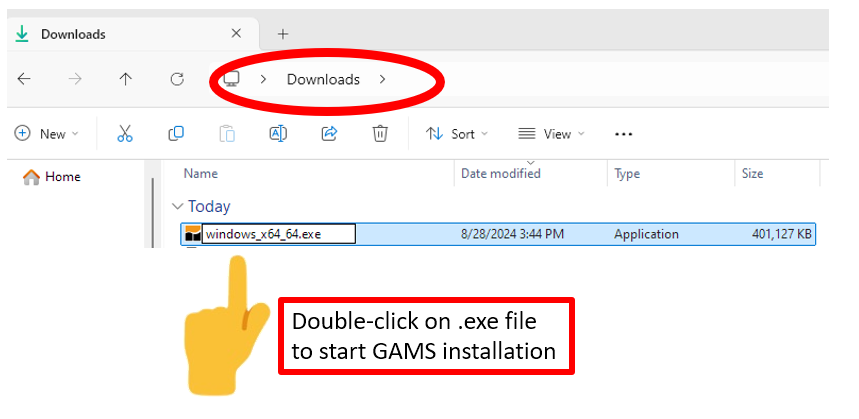
C. Locate and double-click on the installer program, and the installation will begin (Figure 2).
Figure 2. Double-click on the installer .exe file that you just downloaded
D. A series of screens will appear. Make these selections:
i. Installer asks if you want to allow this app to make changes to our device:
Click YES
ii. Welcome to the GAMS set up-Wizard:
Click NEXT
ii. Accept the default destination file for GAMS (unless you want to locate it someplace else on your computer). The default location is the C: drive.
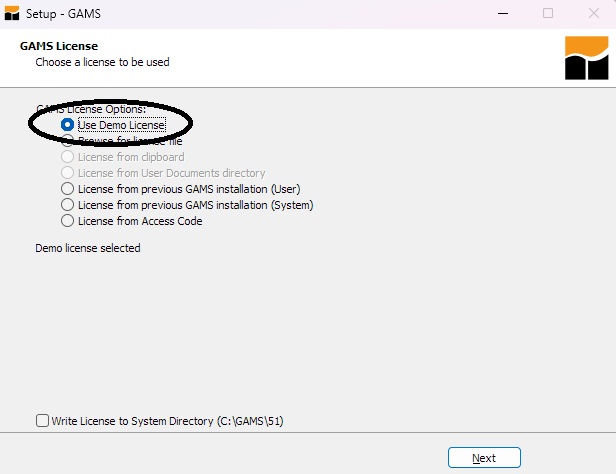
iv. Choose Demo license option (unless you have a license for the 5.1 GAMS version) (Figure 3). And agree to write the license to the system directory, which is the default directory in which the GAMS software is being placed.
Figure 3. Choose the the Demo license option
E. Launch GAMS Studio
When installation is complete, launch GAMS Studio (Figure 4). Then click FINISH. The GAMS icon should be pinned to your taskbar. You can right-click on the icon to check that it is pinned.
Figure 4. Launch GAMS Studio 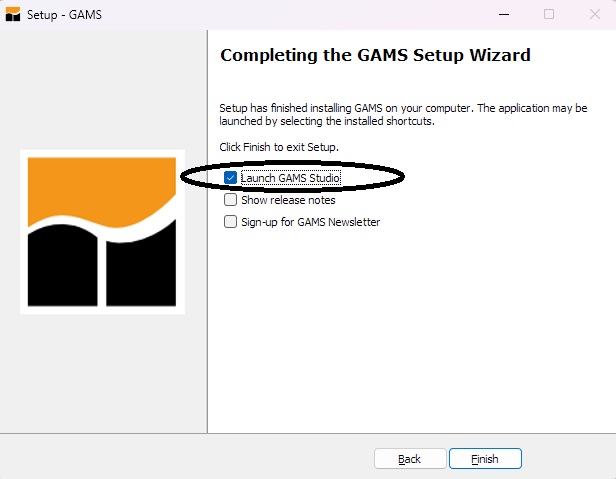
About the GAMS demo license: Demo licenses are not intended for commercial or production use. They are time-limited and require a GAMS or GAMSPy version not older than 18 months. Upon expiration, users must either update their GAMS version or purchase a professional license. https://www.gams.com/sales/licensing/
2. Create a Directory and Download the UNI-CGE Model
Follow these steps to download the UNI-CGE model:
A. Create a directory for your work in this course with a name like “Yourname_UNI.” You may want to create a folder in the directory with a name like “UNIModel” that will hold only the model and its associated files. It is advisable to create the directory somewhere on your hard drive. GAMS sometimes has difficulty when the model is located in the cloud, such as on Dropbox.
B. Download the UNI-CGEXX.zip from the course website, and save it in the directory (or subdirectory) you have just created. “XX” is the model version number. We occasionally update or improve the model.
C. The UNI-CGE model is comprised of a suite of files. They are all contained in the UNI-CGEXX.zip file. Unzip UNI-CGEXX.zip into the directory you have created to hold your model. All files in the .zip package must be placed in the same directory so that the GAMS program can locate them when you run the model.
D. Types of files in the UNI-CGEXX.zip file:
The main model is named UNI-CGEXX.gms. The gms suffix denotes that it is a GAMS program file that can be run and solved. Some files in the .zip file have an .inc suffix, which stands for “include.” Inc.files are auxiliary files that are called into the main model program to serve some function, such as report writing or checking for errors. The .inc files are separated from the main program to reduce clutter.
The files of greatest interest to you are listed and described in Table 1. The other files in the .zip file are necessary but have technical roles that we do not need to focus on.
Table 1. Files contained in the UNI-CGE.ZIP package
|
UNI-CGE FILES |
|
|
File Name |
What It Does |
|
UNI-CGE vXX.gms |
The most recent version of the CGE model |
|
1Calibaration-UNI.inc |
Uses data in the SAM to calibrate parameters and coefficients used in model equations |
|
1Repbase-UNI.inc |
Uses data in the SAM to prepare a report on the base data, including the macro SAM and tax rates |
|
1LES.inc |
Calculates the beta and gamma parameters in the LES function |
|
SAM-USA333.xlsx |
SAM for United States |
3. Open the UNI-CGE Model in GAMS - Method 1
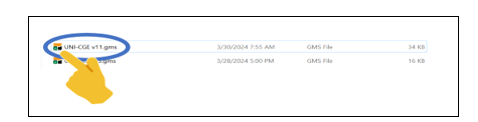
Open your file directory app (in Windows, it is the File Explorer app). Find the name of the model, UNI-CGEXX.gms in the list of files (Figure 5). Double-click on the green arrow on the left side of the model name. This will open the model inside of the GAMS Studio app. The GAMS software should open automatically.
Figure 5. Finding the .GMS model file in the list of files
In GAMS Studio, the name of your model will be on the left side of the GAMS screen (Figure 6). This is GAMS’ Project Explorer window. It lists all open files and projects.
Figure 6. File Explorer lists all open files and projects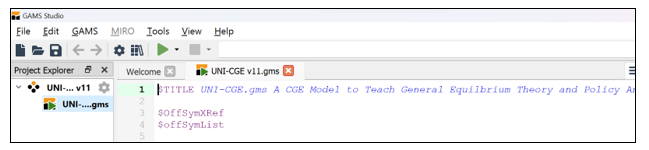
If your model name is not shown, click on View>Project Explorer on the upper menu. Select Project Explorer (Figure 7). This will open a view with the list of all open files and projects. Click on the name of your model - it has a .gms suffix: UNI-CGEXX.gms.
Figure 7. Open Project Explorer window.

4. Open the UNI-CGE Model in GAMS - Method 2
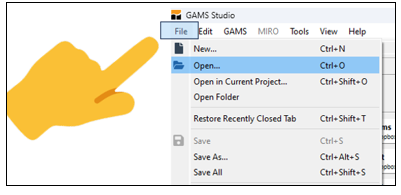
Open the GAMS Studio app. Click on “File” in the upper left corner (Figure 8), then select “Open” from the drop--down menu.
Figure 8. Open the UNI-CGE Model file from within GAMS
Go to the directory in which you saved your model. Select the name of your model - it has a .gms suffix: UNI-CGEXX.gms. This will open the UNI-CGE model. Your model is ready to run!
Go to the top of your window in GAMS Studio. click on the green arrow to run the model.
Copyright: Cornerstone CGE CC 4.0 BY-NC-SA